
Automated Post-Booking Emails
Set up automated follow-up emails in TidyCal to engage contacts after bookings. Create up to 3 emails with customizable timing, subjects, and content — sent automatically after each completed booking.
Overview
Automated emails let you send messages to contacts before or after their bookings, on a schedule you choose. Common uses include:
- Sending a reminder or prep instructions before the booking
- Requesting a review or feedback after the booking
- Sending a thank-you message
- Re-engaging contacts to book again
Available on all plans (Free, Individual, Agency, and Pro). Maximum of 3 automated emails per account.
Getting Started
How to Access
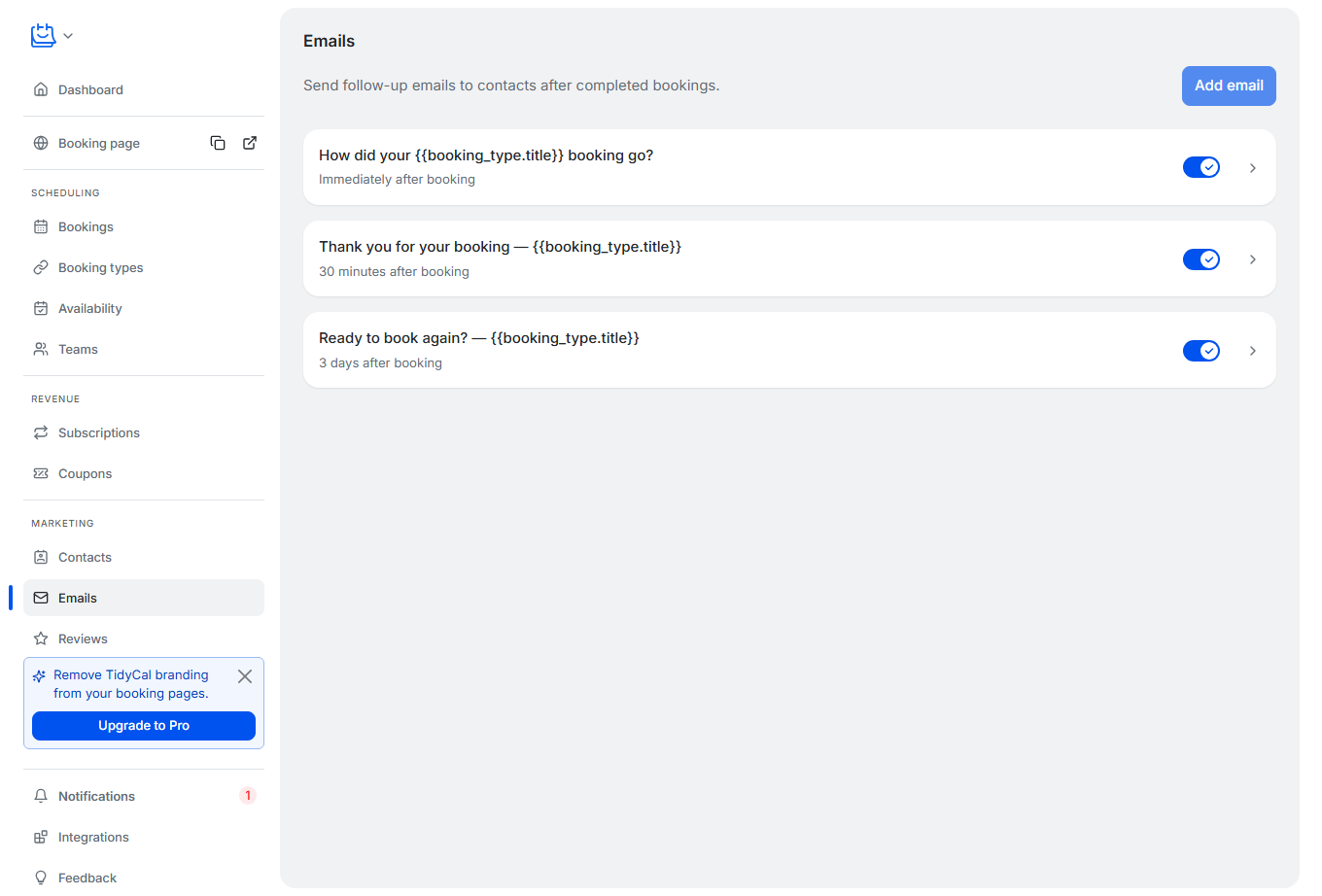
- In the sidebar, under the Marketing section, click Emails
The page lists your automated emails — the scheduled before- and after-booking messages described in this article. To share a booking link yourself, see How do I share my TidyCal booking link?
The first time you visit, TidyCal creates 3 default email templates. For new accounts these arrive turned off, so you choose whether to use them:
| Default Email | Timing | Purpose |
|---|---|---|
| How did your booking go? | Immediately after booking | Request a review (includes review link) |
| Thank you for your booking | 30 minutes after booking | Thank-you follow-up |
| Ready to book again? | 3 days after booking | Re-engagement (includes booking page link) |
You can edit or delete these defaults and create your own.
Turning on post-booking emails (new accounts): So that nothing is sent to your contacts without your consent, the 3 default emails are created disabled for new accounts. A (1) badge appears next to Emails in the sidebar until you enable at least one, and a one-time prompt on the Emails page invites you to turn them on. To start sending, switch each email's toggle on. Accounts created before this change keep their emails enabled.
Creating an Automated Email
- In the sidebar, under Marketing, click Emails
- Click Add email
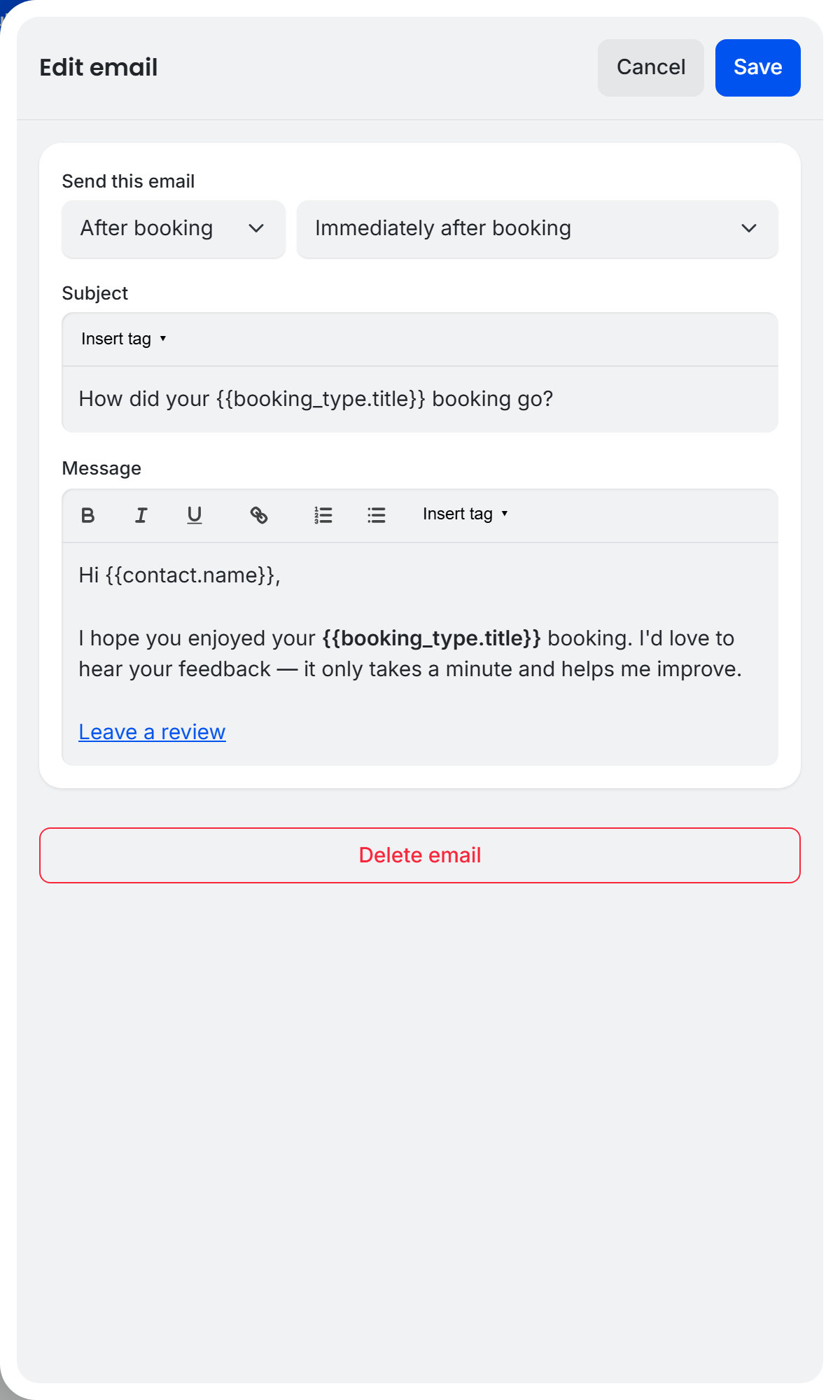
- Under Send this email, choose After booking or Before booking, then pick the timing:
- After booking: immediately, 30 minutes, 1 hour, 3 hours, 1 day, 3 days, 7 days, or 14 days after
- Before booking: 15 minutes, 30 minutes, 1 hour, 3 hours, 1 day, 3 days, or 7 days before
- Enter the Subject line (max 500 characters). You can use template variables like
{{booking_type.title}} - Write the Message body (HTML supported, max 65,535 characters)
- Click Save
Template Variables
Use these variables in the subject and body. They are automatically replaced with real values when the email is sent:
| Variable | Description |
|---|---|
{{contact.name}} |
Contact's full name |
{{contact.email}} |
Contact's email address |
{{booking_type.title}} |
Booking type name |
{{booking_type.booking_page_url}} |
Public booking page link |
{{booking.date}} |
Booking date |
{{booking.time}} |
Booking time |
{{booking.review_url}} |
Link for the contact to leave a review |
{{user.name}} |
Your name (the host) |
Enabling and Disabling Emails
Global Enable/Disable
Each email has a toggle switch on the Emails page. When disabled, the email will not be sent for any booking type.
Per-Booking-Type Control
You can enable or disable each automated email for specific booking types:
- Edit a booking type
- Expand the Advanced section in the left navigation and click Notifications
- Scroll to the Automated emails section and toggle each email on or off for this booking type
This per-booking-type setting is separate from each email's global toggle on the Emails page — an email sends only when it is enabled both globally and for that booking type. By default, each automated email is enabled for all booking types, and disabling one for a specific booking type only affects that booking type.
How Sending Works
- TidyCal checks for eligible emails every 15 minutes, so delivery may be a few minutes after the scheduled time
- After-booking emails are timed from when the booking ends; before-booking emails are timed from when the booking starts (for example, "1 day before booking" sends about 24 hours before the start time)
- Emails are not sent if the booking is cancelled before the scheduled send time
- Contacts who unsubscribe from your automated emails are skipped
- Each email is sent only once per booking (duplicates are prevented)
- The reply-to address uses your booking type's custom reply-to (if set) or your account email
Editing and Deleting Emails
- Click any email on the Emails page to open the editor
- Change the timing, subject, or message and click Save
- To delete, click the Delete button at the bottom of the editor. This action cannot be undone.
Troubleshooting
Email not being sent
- Check that the email is enabled (toggle on) on the Emails page. On new accounts the default emails start turned off, so you must enable them first
- Check that the email is enabled for the specific booking type (Advanced → Notifications → Automated emails)
- The booking must have ended — emails are not sent before the meeting time
- If the booking was cancelled, the email will not be sent
- Emails are checked every 15 minutes, so there may be a short delay
Cannot add more emails
The limit is 3 automated emails per account. Delete an existing email to create a new one.
Frequently Asked Questions
Which plans include automated emails?
All plans (Free, Individual, Agency, and Pro) include automated emails.
Can I create more than 3 automated emails?
No. The limit is 3 automated emails per account. You can customize the timing, subject, and content of each one.
When exactly are emails sent?
It depends on the timing you choose. After-booking emails are measured from the booking's end time (for example, "3 days after booking"). Before-booking emails are measured from the booking's start time (for example, "1 day before booking" sends about 24 hours before it starts). TidyCal checks every 15 minutes, so actual delivery may be a few minutes after the scheduled time.
What happens if a booking is cancelled?
If a booking is cancelled before the email is due to send, the email will not be sent.
Are emails sent for no-shows and unapproved bookings?
No. Post-booking emails and review requests are skipped for bookings you have marked as a no-show, and for bookings still awaiting approval on a booking type that uses booking approval. An unapproved booking only becomes eligible once you approve it.
Are automated emails on by default?
For new accounts, no. The 3 default post-booking emails are created turned off so nothing is sent to your contacts until you opt in. Open the Emails page and switch each email's toggle on to start sending. Accounts created before this change keep their emails enabled.