
How to Enable and Use Booking Approval Workflow
Booking Approval Workflow
TidyCal's Booking Approval feature allows you to manually review and approve booking requests before they're confirmed on your calendar. Instead of automatic confirmation, bookings enter a "pending" state until you approve or reject them.
Not the same as creating a booking for a guest. Booking approval is for requests that bookers submit themselves, which you then approve or reject. If instead you want to start a booking yourself and email a guest a link to confirm, use Create a booking on the Bookings page.
Plan Required: ✅ Individual Plan ($29), Pro ($12/month or $99/year), or Agency Plan ($79)
💡 When to Use Booking Approval:
- Screen potential clients before committing time
- Review booking details and custom form responses
- Manage capacity for high-demand time slots
- Prevent spam or unwanted bookings
- Maintain control over your schedule
How the Approval Workflow Works
When you enable "Manually approve bookings" on a booking type, here's what happens:
Step 1: Booker Requests Appointment
- Someone visits your booking page and selects a time slot
- They complete the booking form (name, email, custom questions)
- They click Request booking to submit the request
- They receive an email: "Your booking request is pending approval"
- The time slot is blocked and no longer available to other bookers while pending
Step 2: You Review the Request
- You receive an email notification: "New booking request waiting for approval"
- Email includes booking details and a "View Booking" button
- You can also review pending bookings in Bookings
- Review the booker's information and custom form responses
- Decide whether to approve or reject
Step 3: Approve or Reject
If you APPROVE:
- Booking is confirmed and added to your calendar
- Time slot is blocked (no longer available to others)
- Booker receives confirmation email with meeting details
- Calendar events are created (Zoom link, Google Meet, etc.)
- Email and SMS reminders are scheduled (if configured)
If you REJECT:
- Booking request is cancelled
- Time slot reopens and becomes available again
- Booker receives rejection notification (optional)
- No calendar event is created
How to Enable Booking Approval
Step-by-Step Setup
- Go to Booking types
- Click on the booking type you want to require approval for (or create a new one)
- In the drawer sidebar, click Restrictions to find the Manually approve bookings toggle
- Toggle Manually approve bookings to ON
- Click Save
That's it! All new bookings for this booking type will now require your approval.
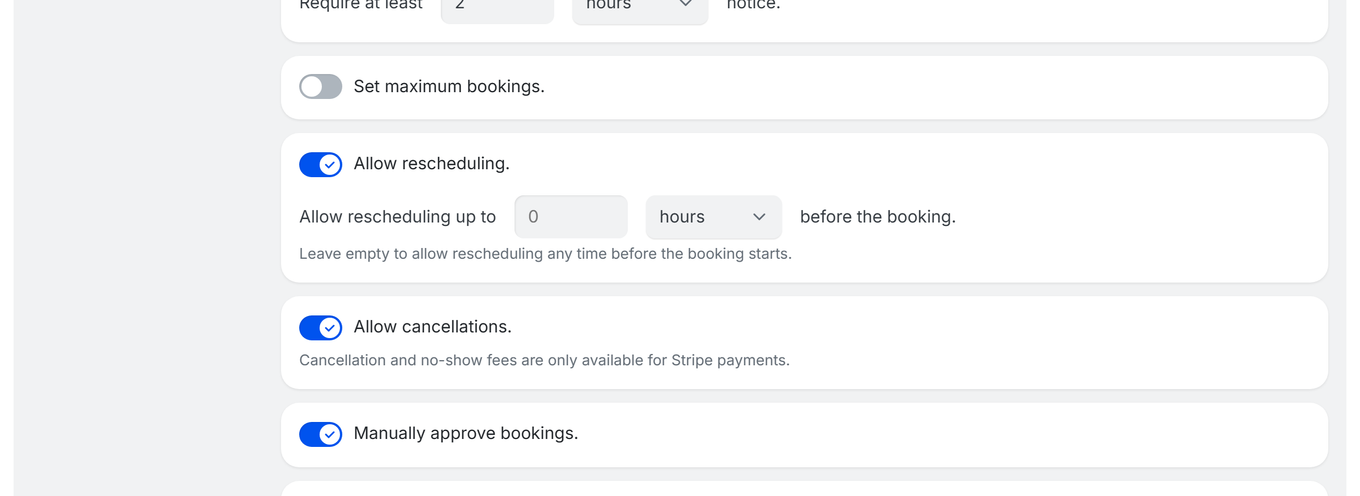
⚠️ Important: Requiring approval only applies to NEW bookings after you enable it. Existing confirmed bookings are not affected.
How to Approve or Reject Bookings
You can review pending requests from three places:
- Email notifications (Method 1 below) — a direct link to the booking review page.
- Bookings page (Method 2 below) — see all pending requests alongside your other bookings.
- In-app notification drawer — click the Bell icon in the sidebar (bottom section). New booking requests appear as cards in the drawer; after you take action, Approved (green badge) and Rejected (red badge) notifications also appear in the drawer.
Method 1: From Email Notification
When a booking request arrives, you receive an email notification with a link to review it:
- Open the "New booking request" email from TidyCal
- Review the booking details (name, email, time, custom responses)
- Click the "View Booking" button in the email
- You'll be taken to the Bookings page in TidyCal
- Click "Approve" or "Reject" next to the pending booking
- Or click the booking to open it and use "Approve booking" or "Reject booking"
- The booker is automatically notified of your decision
✅ Pro Tip: The email also includes a reschedule/cancel link below the "View Booking" button for quick booking management.
Method 2: From the Bookings Page
You can also manage pending bookings directly from the Bookings page:
- Log into your TidyCal account
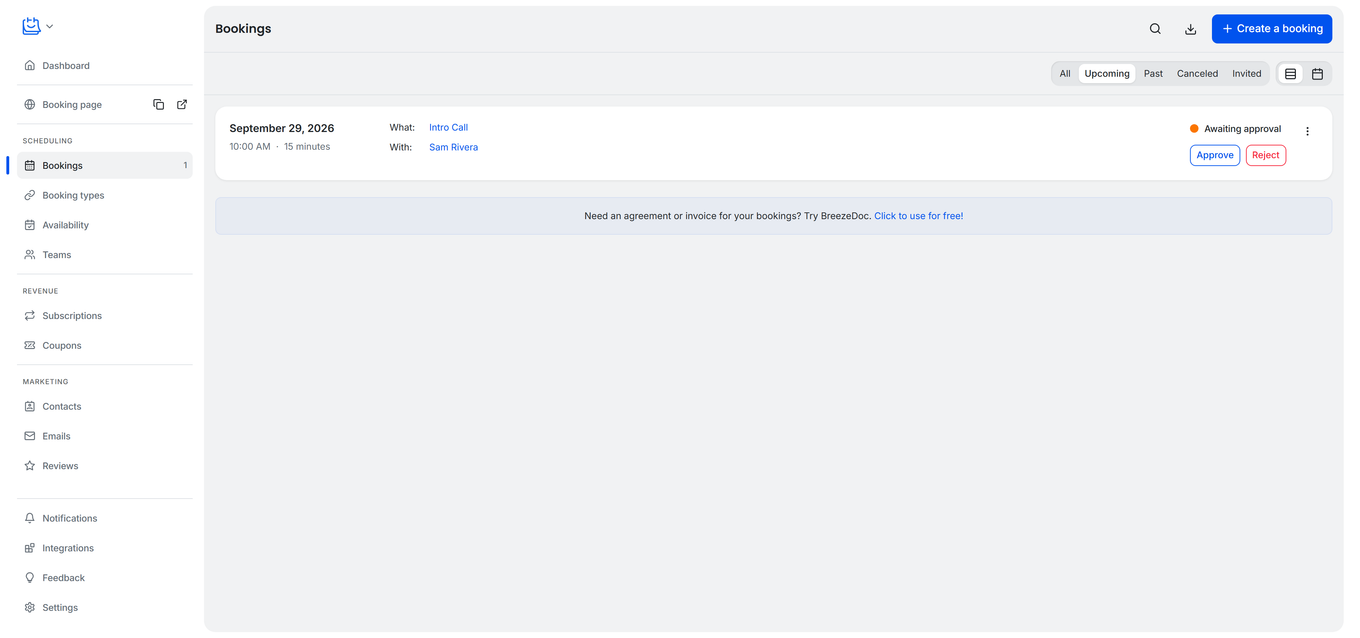
- Go to Bookings in the sidebar
- Look for bookings with a "Pending" status badge
- Click "Approve" or "Reject" next to the pending booking
- Or click the booking for details, then use "Approve booking" or "Reject booking"
Managing Pending Bookings
Viewing Pending Bookings
On the Bookings page:
- Pending bookings appear with a "Pending Approval" badge
- They're listed separately from confirmed bookings
- You can filter to show only pending bookings
- Pending count is shown in navigation (if any exist)
What Happens to Time Slots While Pending?
Important behavior:
- As soon as a booking request is submitted, that time slot is held and is no longer available to other bookers
- The slot stays blocked while the request is pending, so you normally won't get overlapping requests for the same time
- If you approve the request, the booking is confirmed and the slot stays taken
- If you reject the request (or the booker cancels), the slot reopens and becomes available again
- On a paid booking type, if the client's card is declined the slot is held for a further about four hours while they are emailed a link to finish paying — then released if they do not. See What Happens When a Booking Payment Fails
💡 Why it works this way: Holding the slot while a request is pending prevents double-bookings — only one person can hold a given time at once. You stay in control by approving or rejecting each request.
Email Notifications for Pending Bookings
You receive:
- Immediate email when new booking request arrives
- Email includes all booking details and custom form responses
- A "View Booking" button to go directly to the booking
Booker receives:
- "Pending approval" email immediately after requesting
- "Booking confirmed" email if you approve
- Optional rejection notification if you decline
If a payment is declined: on a paid booking type your client also receives up to two "Complete your payment" emails — the first about 30 minutes after the decline, then a reminder about two hours later. If the hold expires unpaid, TidyCal tells your client the booking was not confirmed and tells you it was released, because this booking type requires approval and you are on a paid plan. See What Happens When a Booking Payment Fails.
Automated emails and review requests: a booking that is still awaiting approval does not trigger your automated post-booking emails or review requests. Those only become eligible once you approve the booking. Bookings you mark as a no-show are skipped as well.
Common Use Cases for Booking Approval
Coaching & Consulting
- Screen potential clients: Review their goals and needs before committing
- Qualify leads: Ensure they're a good fit for your services
- Review intake forms: Check custom question responses before booking
High-Value Services
- Limited availability: Manually approve when you have exclusive time slots
- VIP clients: Prioritize certain clients over others
- Expensive services: Extra vetting for premium offerings
Events & Workshops
- Capacity management: Approve attendees up to exact capacity
- Waitlist management: Accept requests and approve when spots open
- Attendee vetting: Ensure participants meet requirements
Spam Prevention
- Public booking pages: Review requests to prevent spam bookings
- Free consultations: Screen for serious inquiries only
- Popular time slots: Prevent bots or malicious bookings
Best Practices for Using Approval Workflow
Respond Quickly
- 24-hour response time: Try to approve/reject within 1 business day
- Set expectations: Tell bookers in your booking page description that approval is required
- Communicate timeline: "You'll receive confirmation within 24 hours"
Clear Communication
- Booking page notice: Add text like "All bookings require approval" to your description
- Custom questions: Ask relevant screening questions to inform your decision
- Rejection messages: Consider following up with a polite explanation if rejecting
When to Use (and Not Use) Approval
✅ Good for:
- Initial consultations with new clients
- High-value or exclusive services
- Limited capacity events
- Services requiring qualification
❌ Not recommended for:
- Regular repeat clients (use automatic confirmation)
- High-volume booking types (creates too much manual work)
- Time-sensitive bookings (people need instant confirmation)
- Commoditized services (haircuts, quick appointments)
Approval Workflow vs Other Options
Require Approval vs Automatic Confirmation
| Feature | Require Approval | Automatic Confirmation |
|---|---|---|
| Booking Status | Pending until approved | Confirmed immediately |
| Host Control | Manual review required | Fully automated |
| Time Slot | Remains available | Blocked immediately |
| Booker Experience | Must wait for approval | Instant confirmation |
| Best For | Screening, vetting, control | Volume, convenience, speed |
Approval vs reCAPTCHA Bot Protection
Different purposes:
- reCAPTCHA: Prevents automated bot submissions (spam prevention)
- Approval: Manual review of legitimate booking requests (screening)
- Use together: Enable both for maximum control (reCAPTCHA blocks bots, approval screens humans)
📚 Learn more: How to Enable Bot Protection with reCAPTCHA
Troubleshooting Booking Approval
Not Receiving Approval Notification Emails
Q: I enabled approval but I'm not receiving emails when someone books.
A: Check these common issues:
- Spam folder: Check your spam/junk folder
- Email settings: Go to Notifications in the sidebar to verify booking notifications are enabled
- Email address: Verify your account email is correct in Settings → Profile
- Email filters: Check if email rules are filtering TidyCal emails
- Test booking: Make a test booking yourself to trigger notification
Bookers Not Receiving "Pending" Email
Q: People are booking but not receiving the "pending approval" email.
A: Ask bookers to:
- Check their spam/junk folder
- Verify they entered email correctly during booking
- Add noreply@tidycal.com to contacts/safe senders
- Check email provider isn't blocking TidyCal emails
Time Slot Not Reopening After Rejection
Q: I rejected a booking but the time slot is still blocked.
A: Verify:
- Refresh your booking page to see updated availability
- Check if another booking was confirmed for that time
- Verify the booking status shows "Rejected" in Bookings
- Wait a few minutes - availability cache may need to refresh
Multiple People Requesting Same Time Slot
Q: Multiple people have requested the same time slot. What do I do?
A: A pending request normally holds the slot, so this is uncommon. If two requests do overlap (for example, near-simultaneous submissions before the slot was held):
- Review all pending requests for that time
- Choose which request to approve (first-come, best-fit, etc.)
- Approve ONE booking - this blocks the time slot
- Reject other requests for that time - they'll be notified
- Consider following up with rejected bookers to offer alternative times
Accidentally Approved Wrong Booking
Q: I approved the wrong booking by mistake.
A: You can cancel the approved booking:
- Go to Bookings
- Find the incorrectly approved booking
- Click "Cancel Booking"
- Time slot will reopen
- You can then approve the correct pending request
- Consider emailing the accidentally approved person to explain
Frequently Asked Questions
Q: Do I get charged for pending bookings (if using paid bookings)?
A: Yes. Payment is processed before you approve the booking. If the booking is rejected, you need to issue a refund from your connected payment processor.
Q: Can bookers cancel their pending request?
A: Yes. Bookers receive a pending email with a cancellation link if they change their mind before you approve.
Q: How long do pending bookings stay pending?
A: Indefinitely, until you approve or reject them. There's no automatic expiration, so it's important to review requests promptly.
Q: Can I enable approval for some booking types but not others?
A: Yes! Approval is configured per booking type. You can have some with automatic confirmation and others requiring approval.
Q: What happens to email/SMS reminders if a booking is pending?
A: Reminders are NOT sent while a booking is pending. They're only scheduled after you approve the booking.
Q: Can team members approve bookings for team booking types?
A: Yes, if they hold the right role. A booking on a team booking type can be approved by the booking type's owner, any host assigned to that booking, or a team member with the Owner or Admin role. A team member with the User role who is not a host on that booking cannot approve it.
Q: Is there a limit to how many pending bookings I can have?
A: No limit. You can have as many pending requests as needed.
Q: Can I customize the "pending approval" email that bookers receive?
A: No. The "pending approval" email uses TidyCal's built-in template and cannot be edited. A booking type lets you customize only the confirmation and reminder emails (subject and body), on the Individual Lifetime, Pro, and Agency Lifetime plans — not on the Free Plan.
Getting Started with Booking Approval
Ready to take control of your bookings? Follow these steps:
- Identify which booking types need approval (new clients, consultations, etc.)
- Update booking page descriptions to mention approval is required
- Enable "Manually approve bookings" on selected booking types
- Add custom questions to help you screen requests (optional)
- Test the workflow by making a test booking yourself
- Enable email notifications so you can respond promptly to requests
- Commit to quick response times (within 24 hours)
✅ Pro Tip: For high-volume booking types, keep automatic confirmation enabled. Only use approval for booking types where manual screening truly adds value!
Need help? Contact TidyCal support if you have questions about the approval workflow.