
How to Customize Email Templates for Booking Confirmations
Customize the email templates for booking confirmations and reminders in TidyCal. Change the subject line, message body, and use template variables to personalize every notification email your attendees receive.
Overview
TidyCal lets you customize two types of email templates per booking type: confirmation emails (sent when a booking is created) and reminder emails (sent before the booking starts). You can modify the subject line and message body, include HTML formatting, and insert dynamic template variables like attendee name, booking date, and meeting link.
| Plan | Email Template Customization |
|---|---|
| Free Plan | Not available (default templates only) |
| Individual Plan ($29) | Full customization of both templates |
| Agency Plan ($79) | Full customization of both templates |
| Pro ($12/month or $99/year) | Full customization of both templates |
Note: Team booking types have email template customization regardless of your personal plan.
Prerequisites:
- An Individual Plan, Pro, or Agency Plan (or a team booking type)
- At least one booking type created
Customizable Email Templates
Confirmation Email Template
Sent to the attendee when a booking is created (or approved, for manual approval booking types).
- Default subject: Your booking is confirmed (in the booker's language)
- Includes booking details, calendar invite, and any custom content you add
Note: The confirmation email is sent when Confirmation method is set to Email confirmation, when no working Google or Microsoft calendar is connected, and always for group bookings and date polls. With Calendar invitation, bookers get a calendar invite instead; customize it with Enable custom calendar invitation. A custom confirmation email needs both a subject and email content.
Reminder Email Template
Sent to the attendee before the booking starts, based on your reminder timing settings.
- Default subject:
Upcoming booking reminder - {{booking_type.title}} - Includes booking details and any custom content you add
Tip: You can delete all email reminders to disable them entirely. With Enable custom email reminders on, click the remove button (X) next to each reminder — you can remove the last one too. You can have up to two reminders.
How to Customize Email Templates
- Go to Booking types and click the booking type you want to edit.
- In the editor sidebar, expand Advanced, then click Notifications.
-
Turn on Enable custom confirmation email (if you see Calendar invitation selected, choose Email confirmation first) and/or Enable custom email reminders.
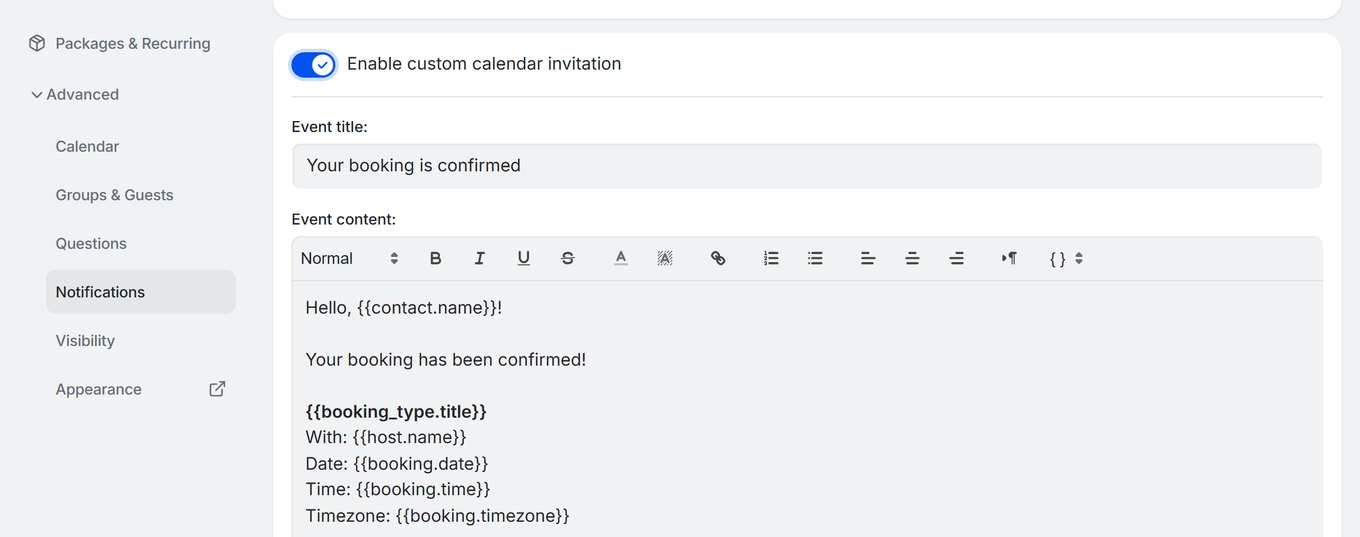
- Edit the subject field (Email subject for confirmations, Subject for reminders).
- Use the rich text editor to modify the email body. You can format text with size, bold, italic, underline, strikethrough, text and background colour, links, lists and alignment.
- Insert template variables (e.g.,
{{contact.name}},{{booking.date}}) to include dynamic content. See Template Variables Reference for the full list. - Click Save at the top of the editor.
Supported HTML Tags
The email editor supports the following HTML tags for formatting:
p , br , b , i , u , strong , em , s , h1 -h6 , span , div , font , ol , ul , li , a
Any other HTML tags will be stripped from the email content for security.
Attributes are filtered too. Inline style is kept, along with the formatting classes the editor itself applies (alignment, size, font and indent). On links, href, target and rel are kept, and any link set to open in a new tab is automatically given rel="noreferrer noopener". Everything else — including id, width, align and your own class names — is removed. If you paste HTML from another tool and some styling disappears, this is why: re-apply the formatting with the editor toolbar.
Template Variables
Use template variables to insert dynamic booking information into your emails. Common variables include:
| Variable | Description |
|---|---|
| {{booking_type.description}} | The description of the booking type |
{{contact.name}} |
Attendee's full name |
{{booking.date}} |
Booking date |
{{booking.time}} |
Booking time |
{{booking.starts_at}} |
Combined date and time |
{{booking.timezone}} |
Attendee's timezone |
{{host.name}} |
Host's name |
{{booking_type.title}} |
Booking type name |
{{booking.meeting_url}} |
Video meeting link |
For the complete list of available variables, see TidyCal Email Template Variables Reference.
Plan Requirements
Email template customization requires the Individual Plan ($29), Pro ($12/month or $99/year), or Agency Plan ($79). Free Plan users receive default TidyCal email templates that cannot be modified.
Exception: Team booking types include email template customization regardless of your personal plan level.
To upgrade, go to Settings → Your plan.
Best Practices
- Keep subject lines concise - Include the booking type name and date for easy identification in the inbox.
- Use template variables - Dynamic content like
{{contact.name}}makes emails feel personal. - Include the meeting link - Use
{{booking.meeting_url}}in the body so attendees can easily join. - Add preparation instructions - Tell attendees what to prepare or bring to the meeting.
- Test your templates - Create a test booking to preview how your customized emails look.
Troubleshooting
Template Changes Not Saving
- Make sure you click Save at the top of the booking type editor.
- Check that your content does not contain unsupported HTML tags, which may be stripped.
Template Variables Showing as Raw Text
- Ensure you are using the exact variable syntax with double curly braces:
{{variable.name}}. - Check the Template Variables Reference for correct variable names.
- Variables only render in actual booking emails. In the editor they show as plain text tags.
Email Formatting Looks Different Than Expected
- Email clients render HTML differently. Keep formatting simple for best cross-client compatibility.
- Avoid complex layouts - stick to paragraphs, lists, bold, and links.
- If the issue persists, contact support@tidycal.com.
Frequently Asked Questions
Can I customize both confirmation and reminder templates?
Yes. Each booking type has separate templates for confirmation and reminder emails. You can customize either or both.
How do I reset to the default template?
Turn off Enable custom confirmation email and/or Enable custom email reminders, then click Save. TidyCal goes back to the default templates, and reminders return to the defaults of 1 hour and 24 hours before.
Can different booking types have different templates?
Yes. Email templates are configured per booking type, so each booking type can have its own unique confirmation and reminder emails.
Can I customize cancellation or reschedule emails?
Currently, only confirmation and reminder email templates are customizable. Cancellation and reschedule emails use TidyCal's default templates.