
How to Set Booking Limits (Daily, Weekly, Monthly Caps)
Set daily, weekly, monthly, or lifetime (in total) booking limits on any booking type to control how many appointments you accept in a given period and prevent overbooking or burnout.
Overview
The Booking Limits feature lets you cap the number of bookings a single booking type can accept per day, week, or month, or in total over the booking type's lifetime. When the limit is reached, time slots are automatically hidden from your booking page so no additional bookings can be made for that period. This helps manage your workload without having to manually block out time.
| Plan | Booking Limits Access |
|---|---|
| Free Plan | Not available |
| Individual Plan ($29) | Available on all booking types |
| Agency Plan ($79) | Available on all booking types |
| Pro ($12/month or $99/year) | Available on all booking types |
Prerequisites:
- An Individual Plan, Pro, or Agency Plan
- At least one booking type created
How to Set Booking Limits
- Go to Booking types and click the booking type you want to edit.
- In the drawer sidebar, click Restrictions.
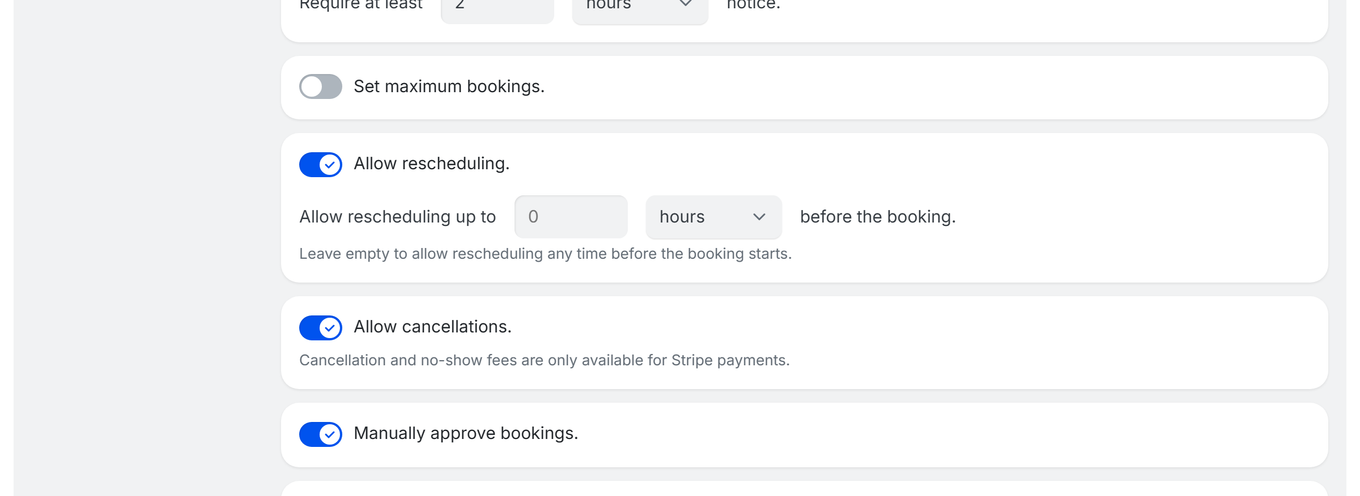
- Toggle on Set maximum bookings.
- Enter the maximum number of bookings in the Limit to field (e.g.,
5). - Select the period from the dropdown: every day, every week, every month, or in total.
- Click Save at the top of the drawer.
Example: Setting "Limit to 5 booking(s) every day" means once 5 bookings exist for a given day, all remaining time slots for that day are hidden.
How Limits Work
- Time slots are hidden - When the limit is reached, available slots disappear from the booking page. Attendees do not see an error message; they simply see fewer (or no) available times. The exception is packages and recurring bookings, where the booker picks several dates at once: if those dates would go past the limit, TidyCal asks them to spread their dates out or pick fewer.
- Cancelled bookings do NOT count - If someone cancels a booking, that slot opens back up and the count decreases.
- Timezone-aware - Day/week/month boundaries are calculated based on your timezone setting, not the attendee's timezone.
- Per booking type - Each booking type has its own independent limit. A limit on one booking type does not affect others.
Period Options
| Period | How It Counts | Example |
|---|---|---|
| Day | Resets at midnight in your timezone | Max 3 bookings per day |
| Week | Resets at the start of each week | Max 10 bookings per week |
| Month | Resets at the start of each month | Max 20 bookings per month |
| In total | Never resets — counts every non-cancelled booking of this booking type | Max 50 bookings ever |
Plan Requirements
Booking Limits require the Individual Plan ($29), Pro ($12/month or $99/year), or Agency Plan ($79). Free Plan users do not have access to this feature.
If you are on the Free Plan, the toggle is locked. A limit you set before booking limits became a paid feature keeps working, and you can switch it off, but you cannot change it. On team booking types, the team owner's plan decides. To upgrade, go to Settings → Your plan.
Common Use Cases
Prevent Burnout
Limit consultations to 3-4 per day to keep energy levels high and maintain quality across all meetings.
Resource Management
If a booking type requires significant preparation (e.g., strategy sessions), limit it to a few per week to ensure you have time to prepare for each one.
Seasonal or Capacity Control
Set monthly limits for services with limited availability, such as coaching slots or in-person meetings, to avoid over-committing.
Troubleshooting
Time Slots Still Showing After Limit Reached
- Verify you clicked Save after setting the limit.
- Check that the limit count and period are configured correctly.
- Remember that cancelled bookings free up capacity - the limit is based on active bookings only.
No Time Slots Available When Expected
- You may have hit your booking limit for the current period.
- Check your current bookings count vs. the limit you set.
- Try increasing the limit. If you switch to a longer period (for example day → week), raise the number to match.
Booking Limits Toggle Is Locked
- You are on the Free Plan.
- Solution: Upgrade to the Individual Plan ($29), Pro ($12/month or $99/year), or Agency Plan ($79).
- If you have a paid plan and still see it locked, contact support@tidycal.com.
Tip: Use the Troubleshoot availability button on your booking page to see exactly which slots are blocked and why. Slots affected by this setting show the BOOKING LIMIT badge. See How to Fix Missing Availability for details.
Team booking types note: For a team booking type the troubleshooter evaluates each host individually — not just the plan owner — using each host's own availability, connected calendars and existing bookings, in that host's own timezone. It runs the same per-host logic your public team booking page uses, so the two agree. When a slot is unavailable you get a per-host breakdown naming which host is blocked and why. Round Robin slots stay open when any host is free; Collective slots need every host free. See Simplify Team Scheduling for per-host availability details.
Frequently Asked Questions
Do cancelled bookings count toward the limit?
No. Cancelled bookings are excluded from the count. If someone cancels, that slot becomes available again.
Can I set different limits for different booking types?
Yes. Each booking type has its own independent limit. You can set 3 per day for consultations and 10 per week for quick calls, for example.
What does the attendee see when the limit is reached?
For single bookings the slots are simply hidden — there is no error message. For packages or recurring bookings, if the chosen dates would go past the limit, the booker sees an error asking them to spread their dates out or pick fewer.
Can I combine booking limits with other restrictions?
Yes. Booking limits work alongside other booking type settings like minimum notice, buffer time, and advance booking windows. All restrictions are applied together.