
How do I import contacts and invite them to book?
Import contacts and invite them to book from Contacts → Import & invite: use your Google Calendar, a contacts file or pasted emails, then send from your own email.
Overview
Import & invite turns people you already know into contacts and helps you send each of them your booking link. You pick who to invite, write a short message, and TidyCal opens a ready-to-go email in your own Gmail or mail app. It is available on every plan, including the Free Plan.
TidyCal never sends the invite itself. The email goes out from your own address, only when you press send, so it reaches people like a note from you.
Before You Start
- Nothing needs to be set up for a contacts file or pasted emails.
- To get suggestions from your calendar, connect a Google Calendar first. See Adding Calendars to your TidyCal account. Other calendar types (Microsoft, Apple, CalDAV or ICS feeds) are not read for suggestions.
Three Ways to Bring People In
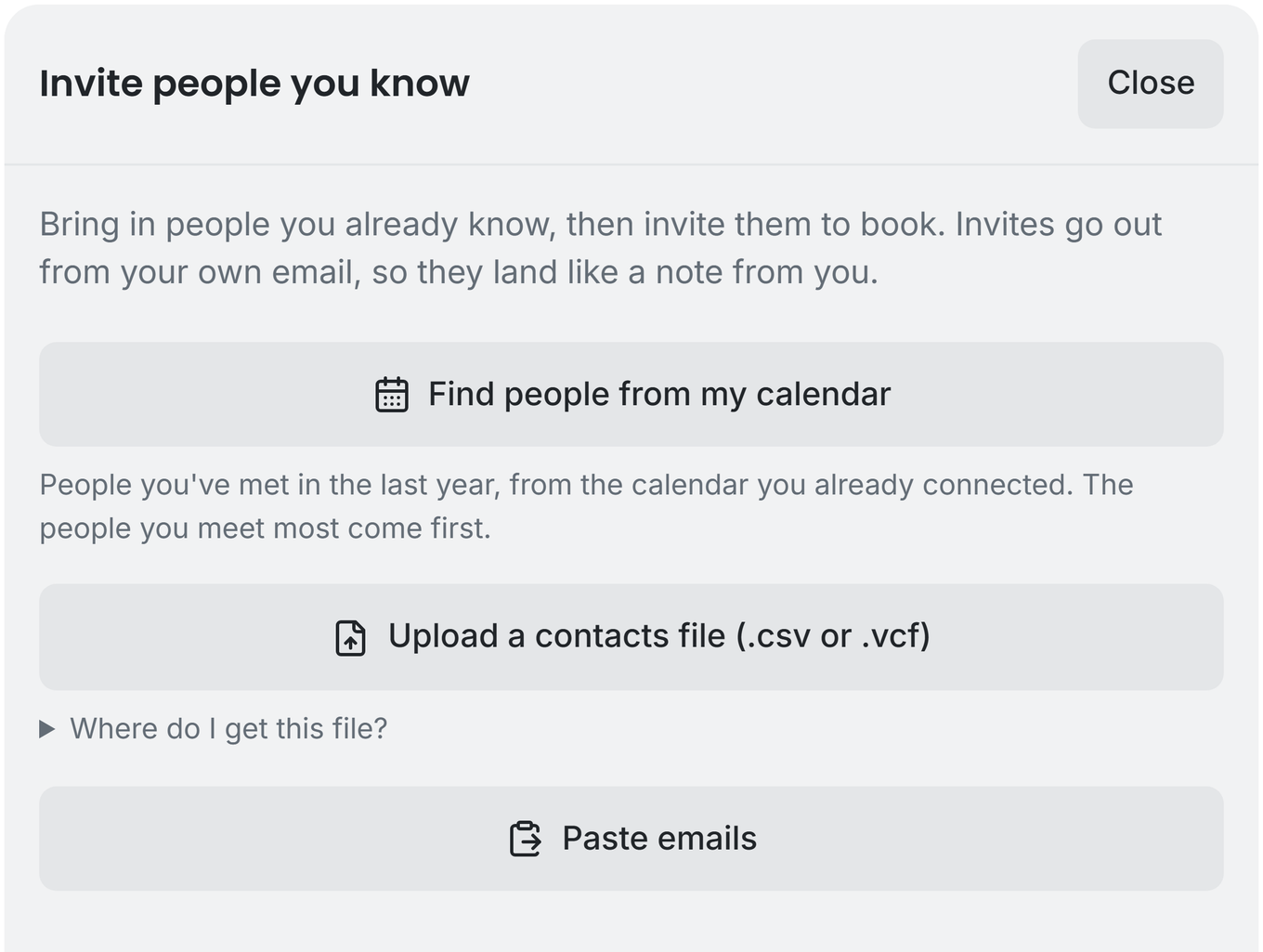
- Find people from my calendar — looks through the last year of meetings in your connected Google Calendar and suggests who to invite. The people you meet most come first. Only your primary calendar in each connected Google account is read, and only meetings with a small number of attendees count, so large group events do not fill the list.
- Upload a contacts file (.csv or .vcf) — the picker also accepts .tsv and .txt files. A CSV needs a header row with a column whose name contains “email”; the first email address for each person is used, along with their name when the file has one. The Where do I get this file? link in the drawer explains how to export from Gmail, iPhone or Mac, Outlook and LinkedIn.
- Paste emails — paste addresses from a To: line or a spreadsheet, separated by commas, spaces or new lines. Names work too, like Bob Lee <bob@example.com>. Click Find people.
You can bring in up to 5,000 people at a time. If your file has more, the first 5,000 are used and you can import the rest afterwards. Invalid and duplicate addresses are dropped.
How to Import and Invite
- Click Contacts in the sidebar (under Marketing). On a phone, open More and choose Contacts.
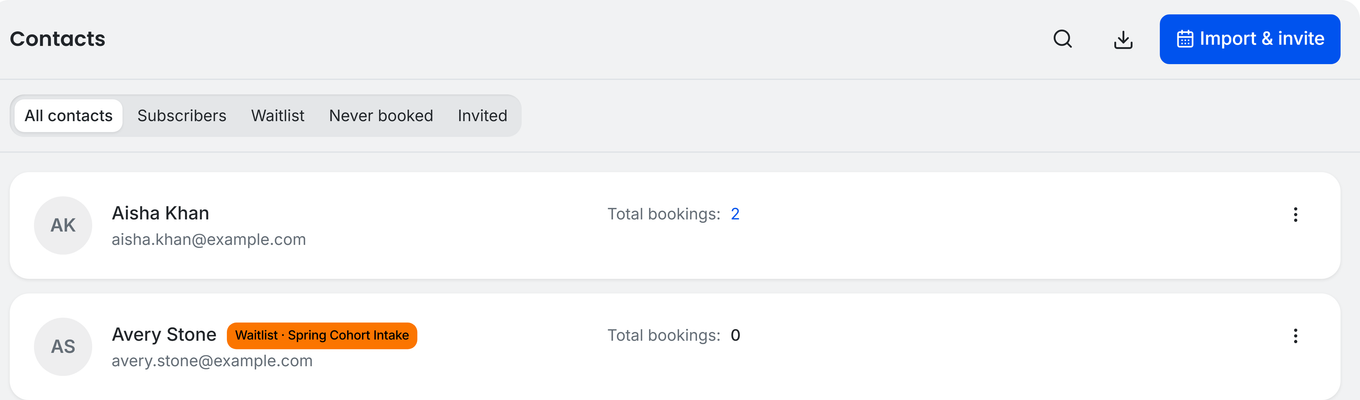
- Click Import & invite. The Invite people you know drawer opens. If your Contacts page is empty, the page offers the same choices.
- Choose a source: Find people from my calendar, Upload a contacts file (.csv or .vcf) or Paste emails.
- On the review screen, tick the people you want. Suggested for you lists the people most likely to book (for example, people you have met more than once or recently); everyone else is under Everyone else. Use the search box, Select all, or Select all matches to speed this up.
- Click Next: write your message. To only keep the people as contacts without inviting them, click Just save to contacts instead.
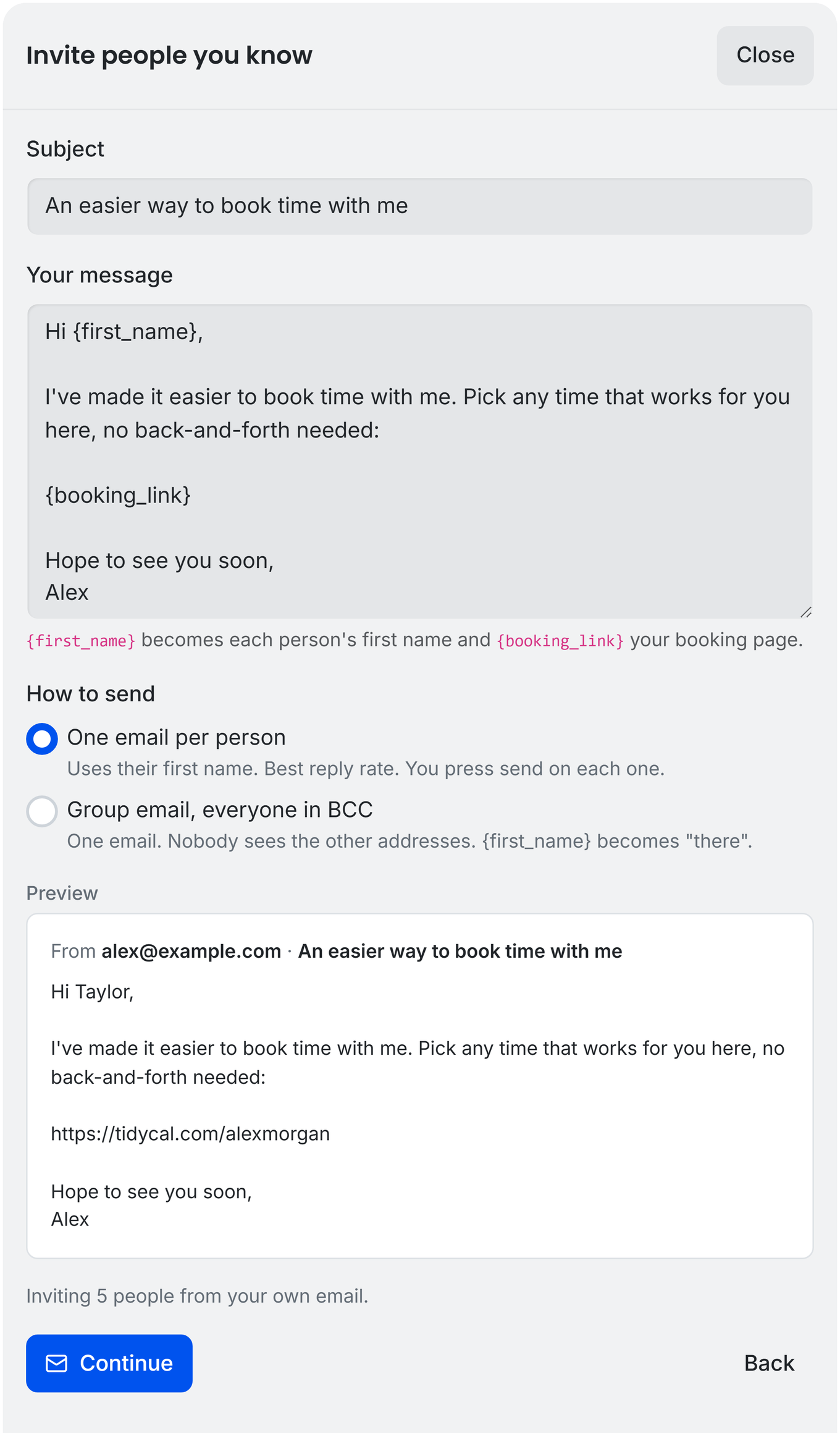
- Edit the Subject and Your message, then choose How to send (see below) and click Continue.
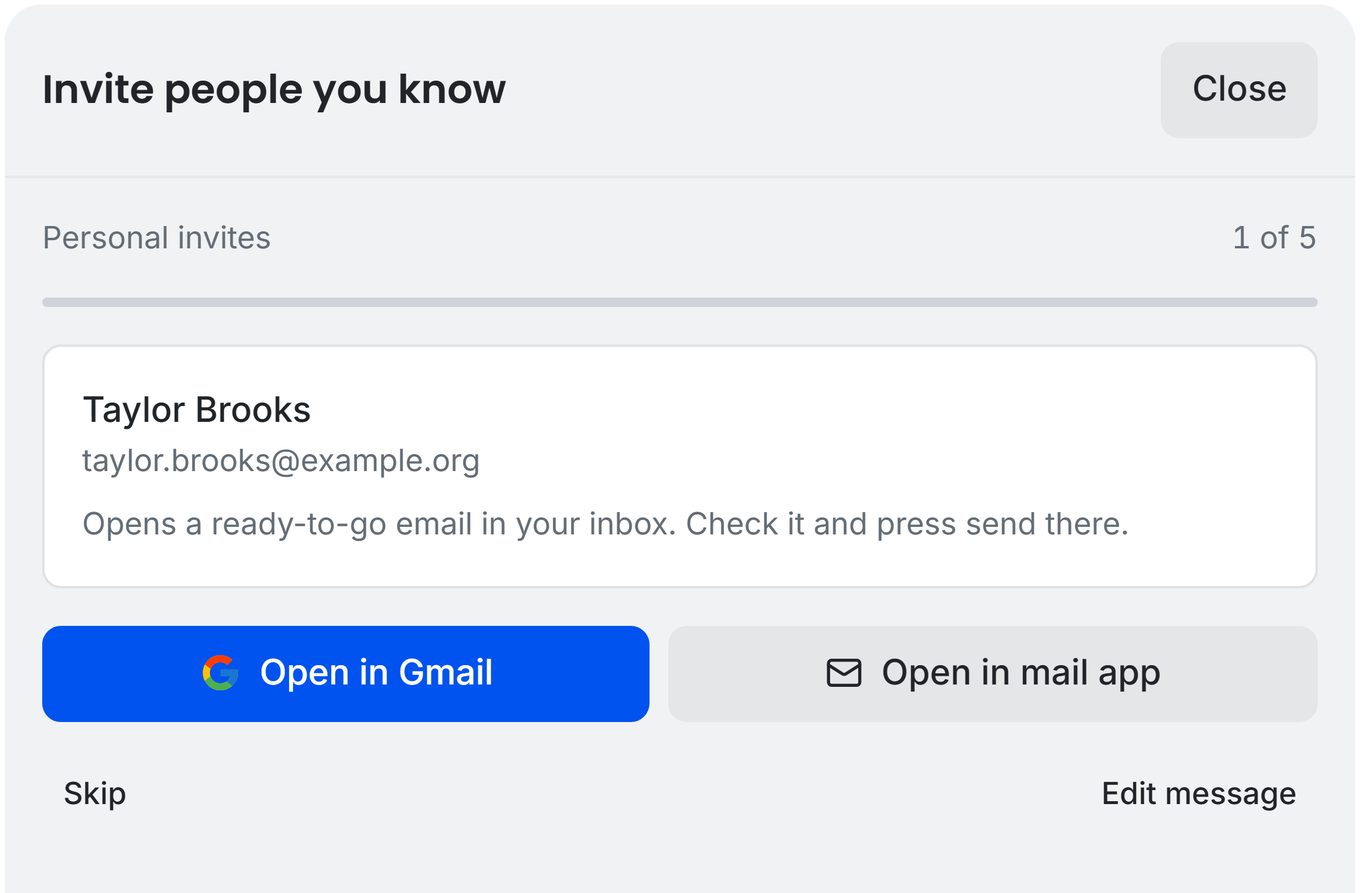
- Click Open in Gmail or Open in mail app. Your email opens with the message ready; check it and press send there. Repeat for each person, or use Skip to leave someone out.
- When you finish, the drawer shows how many people you invited and how many new contacts were added. Click Done.
What the Badges on the Review Screen Mean
- Client — this person already has at least one booking with you.
- Invited — you invited them in the last 30 days. They are not ticked automatically, but you can tick them to invite again.
- In contacts — they are already one of your contacts.
- Unsubscribed — they unsubscribed from automated emails. They cannot be ticked and are always skipped.
- Looks automated — the address looks like a shared or no-reply mailbox (for example info@ or support@), so it is not ticked automatically.
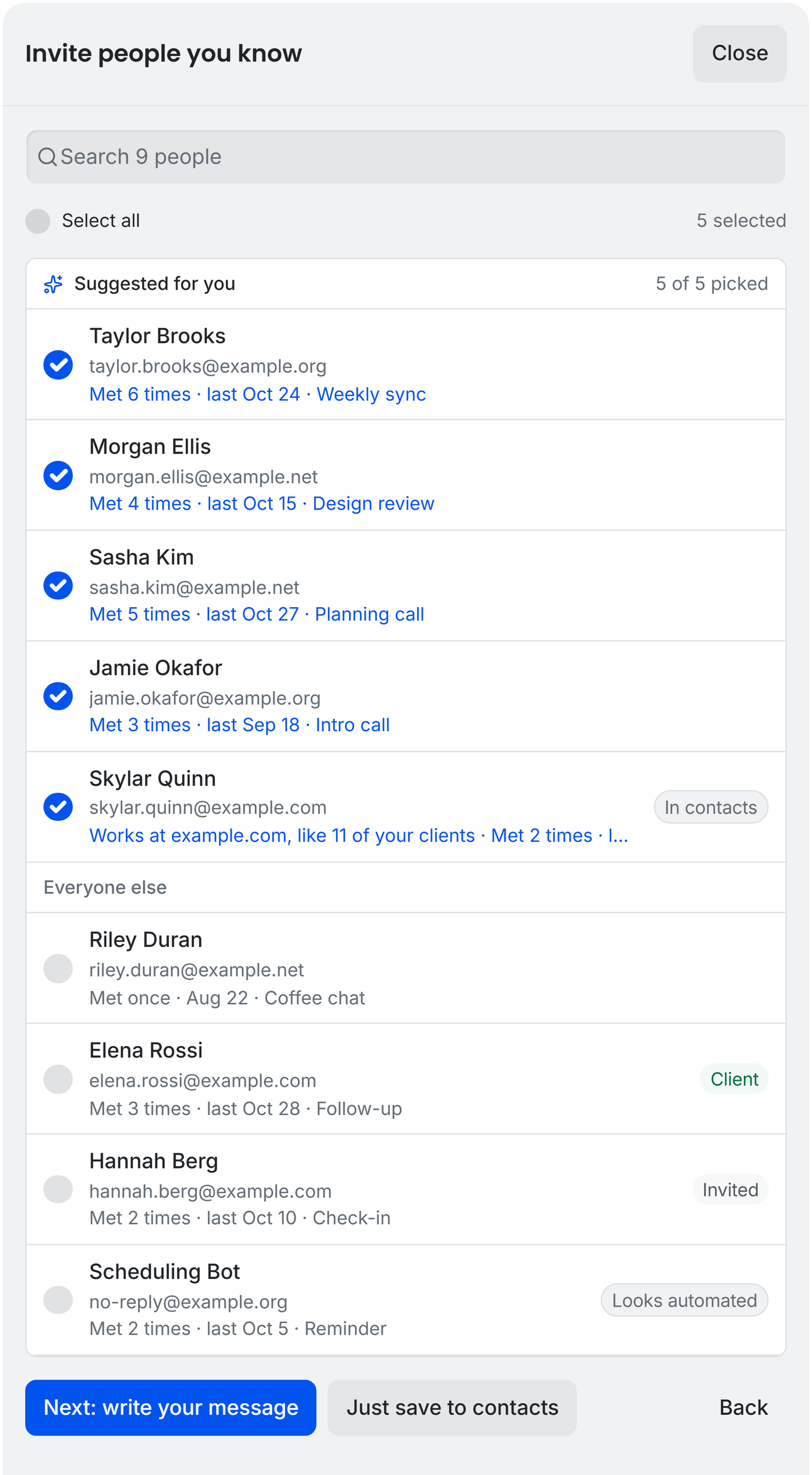
With a file or pasted list of up to 50 eligible people, everyone is ticked to start with. With a longer list, or when you read your calendar, only the suggested people are ticked.
Write Your Message and Choose How to Send
The subject and message start with ready-made text you can change (subject up to 150 characters, message up to 1,500). Two placeholders are filled in for you:
- {first_name} becomes each person's first name.
- {booking_link} becomes your booking page link, which lists your enabled booking types. If you delete it from the message, the link is added at the end.
Under How to send, choose one of two options:
- One email per person — each person gets their own email using their first name. This is the default for 15 people or fewer, and you press send on each one.
- Group email, everyone in BCC — one email for up to 40 people, with your own address in the To line and everyone else in BCC, so nobody sees the other addresses. {first_name} becomes “there”. This is the default for longer lists, and TidyCal splits a bigger list into several emails.
After TidyCal opens an email, a link reads Didn't send it? Undo. A person counts as invited only after you move on (next, skip, done or close) without using Undo.
Send a Booking Link to One Contact
On the Contacts page, open the menu on a contact's row and choose Send booking link. The drawer opens straight at the message step for that person. This option is not available for contacts who have unsubscribed.
Find the People You Invited
- The filter tabs on the Contacts page include Invited (people you have sent an invite to) and Never booked (contacts with no bookings).
- A grey Invited badge on a contact's card shows that you invited them and they have not booked yet.
Replies come to your own inbox, and new bookings show up in TidyCal as usual. To share your link without importing anyone, see How do I share my TidyCal booking link?
What Happens to Your Contacts
- Imported people are saved as contacts, matched by email address, so importing the same person twice does not create a duplicate.
- People who are already contacts are not changed, except that an empty name is filled in.
- Saving is all-or-nothing: if saving fails, none of the people from that import are added.
- Your own email address is never added.
Troubleshooting
“We couldn't find any email addresses”
- For a CSV, make sure the first row is a header and one of the columns has “email” in its name. Without a header like that, TidyCal reads the file as pasted text.
- Try Paste emails and paste the addresses directly.
Find people from my calendar is missing or fails
- The button only appears when a Google Calendar is connected. Connect one under Integrations → Calendars.
- If you see “Could not read your calendar. Try reconnecting it in Calendars.”, reconnect your Google account there and try again.
I can't tick someone
- People marked Unsubscribed cannot be selected, because they asked not to receive automated emails.
The email opened but nothing was sent
- TidyCal only prepares the email. Check it in Gmail or your mail app and press send there.
- If you closed it without sending, click Undo in the drawer right away. Otherwise the person shows as Invited, and you can tick them again on the review screen to invite them again.
Frequently Asked Questions
Does TidyCal send the invitations?
No. TidyCal opens a drafted email in your Gmail or your default mail app, and the email is sent from your own address when you press send. TidyCal does not email imported contacts for you.
Which plans include Import & invite?
All of them: Free Plan, Individual Lifetime, Agency Lifetime and Pro.
Can I get suggestions from my Outlook or Apple calendar?
No. Suggestions come only from a connected Google Calendar. With another calendar, upload a contacts file or paste emails instead.
Can I add one contact by hand, or export my contacts?
There is no add-contact form. To add one person, choose Paste emails, paste their address and click Just save to contacts. Exporting contacts as a CSV, using the download icon next to the search box, is for paid plans (Individual Lifetime, Agency Lifetime and Pro).