
Adding Calendars to your TidyCal account
Connect Google Calendar, Microsoft 365 or Apple Calendar in Integrations → Calendars so busy events block your time and new bookings go to your calendar.
Calendar Integration Overview
TidyCal integrates with three calendar providers so you can sync existing events and ensure clients only book when you are truly available. Connecting a calendar enables two-way sync: TidyCal reads your events to detect conflicts and writes new bookings to your primary calendar, unless a booking type is set to add bookings to a different calendar.
| Provider | Connection Method | Notes |
|---|---|---|
| Google Calendar | OAuth (one-click sign-in) | Includes Google Workspace accounts |
| Microsoft 365 | OAuth (one-click sign-in) | Outlook.com, Live.com, Hotmail supported |
| Apple Calendar | App-specific password (CalDAV) | Requires an iCloud app-specific password, not your regular Apple ID password |
Prerequisites
- A TidyCal account (Free, Individual, Pro, or Agency Plan)
- An active calendar account with one of the three supported providers
- For Apple Calendar: an app-specific password generated from your Apple ID settings
How to Connect Google Calendar
- Go to Integrations (in the sidebar) and select the Calendars section
- Click "Add Google account"
- Sign in to your Google account and grant TidyCal permission to access your calendars
- Your Google calendars will appear under Connected accounts
Important: You must accept all authorization scopes when connecting. If you skip any, TidyCal will show the message: "You must accept all google authorization scopes to connect a Google account."
If you have trouble connecting, try removing TidyCal from your Google third-party app permissions and reconnecting in an incognito/private browser window.
How to Connect Microsoft 365
- Go to Integrations (in the sidebar) and select the Calendars section
- Click "Add Microsoft 365 account"
- Sign in to your Microsoft account and authorize TidyCal
- Your Outlook calendars will appear under Connected accounts
Work/school accounts: If using a Microsoft 365 work or school account, your IT administrator may need to approve TidyCal as a permitted app before the connection can succeed.
Supported accounts: Office 365, Outlook.com, Live.com, and Hotmail. There is no separate option for an on-premises Microsoft Exchange server.
Connecting a Microsoft calendar does not set up Teams meeting links — those are a separate connection in Integrations → Video conferences. See How to Use Microsoft Teams (MS Teams).
How to Connect Apple Calendar
Apple Calendar uses CalDAV and requires manual credential entry instead of one-click OAuth.
- Go to Integrations (in the sidebar) and select the Calendars section
- Click "Add Apple account"
- In the drawer that opens, enter your Apple ID in the first field
- Enter an App-specific password in the second field (format: xxxx-xxxx-xxxx-xxxx)
- Click the "Where do I find this?" link if you need help generating an app-specific password from Apple
- Click "Add account"
Important: You must use an app-specific password from Apple, not your regular Apple ID password. This is an Apple security requirement for CalDAV connections. If credentials are incorrect, you will see: "Sorry, we had trouble connecting with these credentials."
Managing Your Calendars

Primary Calendar
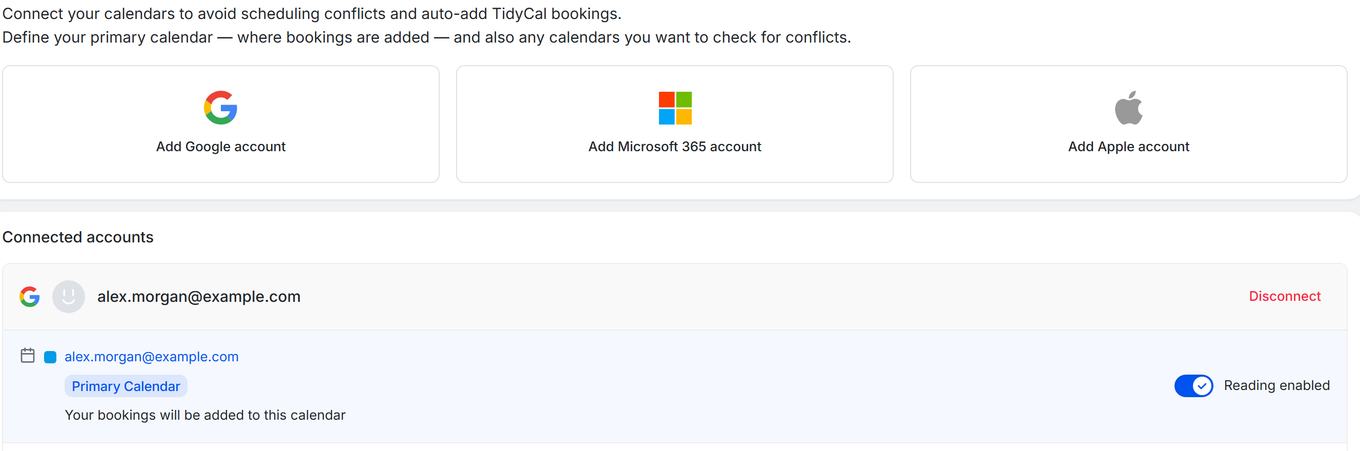
Your Primary Calendar is where TidyCal writes new booking events, unless a booking type is set to add bookings to a different calendar. It is marked with a "Primary Calendar" badge and the text "Your bookings will be added to this calendar".
To change your primary calendar, click "Set primary" on the calendar you want to use. Only one calendar can be primary at a time. Calendars shared with you as view-only show View-only instead of Set primary, because TidyCal can't add bookings to them — give your account edit access to the calendar in Google Calendar or Outlook, or choose a calendar you own.
Example: Set your "Work" calendar as primary so new bookings appear there. Then enable reading on your "Personal" calendar so a dentist appointment blocks that time slot. New bookings still go to "Work."
Reading Enabled / Reading Disabled
Each calendar has a toggle labeled "Reading enabled" or "Reading disabled" that controls whether TidyCal syncs events from that calendar to check for scheduling conflicts.
- Reading enabled TidyCal syncs events from this calendar and blocks time slots that conflict with existing events
- Reading disabled TidyCal ignores events on this calendar and they will not block any booking slots
Enable reading on all calendars that contain events you want TidyCal to respect when showing available times.
Disconnecting a Calendar Account
To remove a connected calendar account, click the "Disconnect" button next to the account name. This removes the account and all associated calendars from TidyCal. Existing bookings already created are not affected.
Reconnecting a Failed Account
If a calendar account loses authentication (for example, your password changed or permissions were revoked), a "Please Reconnect" button appears instead of the normal calendar controls. Click it to re-authorize the connection. For Apple accounts, enter a new app-specific password in the drawer that opens and click Update account.
TidyCal sends an email notification when a calendar needs reconnection. If you do not see the email, check your spam folder. Adding service@tidycal.com to your contacts helps prevent this.
Until you reconnect: TidyCal stops syncing that account, so new events on its calendars are not seen and bookings are not added to them. For the first 30 days, the events it synced before the connection failed still block your availability. After 30 days they are no longer checked, so those times can be booked. Reconnect as soon as you get the email.
Two-Way Sync
TidyCal provides automatic two-way sync with all three calendar providers:
- Read direction: TidyCal pulls events from your calendars to detect busy times and prevent double bookings
- Write direction: When someone books with you, TidyCal creates a calendar event on your Primary Calendar (or on the calendar a booking type is set to use)
Sync happens automatically. After connecting a calendar or toggling "Reading enabled", allow a few minutes for the initial sync to complete.
Calendar Limits by Plan
The number of calendars you can have with "Reading enabled" depends on your TidyCal plan:
| Plan | Price | Max Reading-Enabled Calendars |
|---|---|---|
| Free Plan | Free | 1 |
| Individual Plan | $29 one-time | 10 |
| Agency Plan | $79 one-time | 10 (25 if purchased before September 1, 2026) |
| Pro | $12/mo or $99/yr | Unlimited |
Agency Lifetime calendar limits depend on when you bought. Agency Lifetime purchases made on or after September 1, 2026 include 10 calendar connections. If you purchased Agency Lifetime before that date, you keep your original 25 connections. Pro includes unlimited calendar connections.

You can connect multiple calendar accounts, but only enable reading up to your plan limit. If you hit the limit:
- Free Plan users see: "You have reached your reading enabled calendar limit of 1. To increase your limit please upgrade!"
- Individual/Agency Plan users see: "You have reached your reading enabled calendar limit of [limit]. Please disable another calendar first."
Troubleshooting
Calendar not connecting
- Ensure you grant all requested permissions during the OAuth authorization step
- For Google Calendar, try removing TidyCal from your Google third-party app permissions and reconnecting in an incognito/private browser window
- For Apple Calendar, make sure you are using an app-specific password, not your regular Apple ID password
- Try clearing your browser cache or using a different browser
Events not blocking availability
- Check that the calendar has "Reading enabled" turned on (the toggle switch should be checked)
- Verify the event is on a calendar connected to TidyCal, not a different calendar in the same account
- Events marked as Free (transparent) do not block availability. Busy events do, and on Microsoft calendars so do Tentative, Out of office and Working elsewhere events
- Allow a few minutes after connecting for the initial sync to complete
- See Troubleshooting Calendar Events for more detailed solutions
Cannot enable reading on more calendars
- You have reached your plan's reading-enabled calendar limit
- Free Plan: 1 calendar | Individual Plan ($29): 10 calendars | Pro ($12/mo or $99/yr): unlimited calendars | Agency Plan ($79): 10 calendars (25 if purchased before September 1, 2026)
- Disable reading on a calendar you no longer need, then enable the new one
- Or upgrade your plan for additional calendar connections
Calendar shows "Please Reconnect"
- Your calendar authentication has expired or been revoked
- Click the "Please Reconnect" button and re-authorize access
- For Google, you may need to re-grant permissions if they were revoked in your Google account settings
- If the issue persists, use the "Disconnect" option and reconnect the account from scratch
- Contact support@tidycal.com if you continue to have issues
Frequently Asked Questions
Can I connect multiple accounts from the same provider?
Yes. You can connect multiple Google accounts, multiple Microsoft accounts, and multiple Apple accounts. Each account's calendars appear separately under Connected accounts on the Calendars page.
Which events block my availability?
Events marked as Busy on calendars with "Reading enabled" block availability; on Microsoft calendars, Tentative, Out of office and Working elsewhere events block too. Events marked as Free (transparent) never block. On Google calendars, cancelled events and invitations you declined do not block, and cancelled Outlook events do not block either. Recurring events do block availability.
What is the difference between Primary Calendar and Reading Enabled?
Primary Calendar is where new TidyCal bookings are written as calendar events. "Reading enabled" controls which calendars are checked for scheduling conflicts. A calendar can have reading enabled without being your primary calendar. Your primary calendar is only checked for conflicts while its "Reading enabled" toggle is on — When TidyCal sets your first primary calendar it also turns reading on (for a Microsoft calendar, only if you are under your calendar limit), but you can turn it off like any other calendar.
What happens if I downgrade to the Free Plan?
Calendars that already have reading enabled stay enabled and keep being checked for conflicts. The Free Plan limit of 1 applies when you turn reading on: while you are at or over the limit, you can't turn reading on for another calendar until you turn others off or upgrade.
Can I connect Proton Calendar or another CalDAV calendar?
No. TidyCal connects Google Calendar, Microsoft 365 and Apple iCloud calendars only. Other calendars, such as Proton Calendar or a self-hosted CalDAV server, can't be connected.