
Custom Domains - Use Your Own Domain for Booking Pages
Set up a custom domain for your TidyCal booking page so clients visit your branded URL instead of tidycal.com. Available on Pro, and on Agency Lifetime purchased before September 1, 2026.
Overview
Custom domains let you replace the default tidycal.com/your-username URL with your own domain or subdomain, such as schedule.yourbusiness.com or bookings.yourdomain.com. When visitors go to your custom domain, they see your TidyCal booking page with your branding.
| Feature | Free Plan | Individual Lifetime ($29) | Pro ($12/mo or $99/yr) | Agency Lifetime ($79) |
|---|---|---|---|---|
| Custom Domain (your account) | No | Legacy holders only | Yes | Purchased before September 1, 2026 only |
| Custom Domain (per team) | No | No | Yes | Purchased before September 1, 2026 only |
Note for legacy Individual Lifetime customers: If you purchased Individual Lifetime before the April 2026 Pro launch, your account is grandfathered into custom domain access. New Individual Lifetime purchases do not include custom domain — subscribe to Pro for ongoing access. Agency Lifetime purchased on or after September 1, 2026 does not include a custom domain either; Agency Lifetime purchased before that date does. See Grandfathered Individual Lifetime access below.
Prerequisites
- Pro, or Agency Lifetime purchased before September 1, 2026. Agency Lifetime purchased on or after that date does not include a custom domain — subscribe to Pro to add one. (Legacy Individual Lifetime customers who purchased before April 2026 also retain access.) Free Plan, new Individual Lifetime and new Agency Lifetime users see an upgrade prompt.
- A domain name you own with access to its DNS settings
- Your domain registrar's control panel (GoDaddy, Namecheap, Cloudflare, etc.)
How to Set Up a Custom Domain (Your Account)
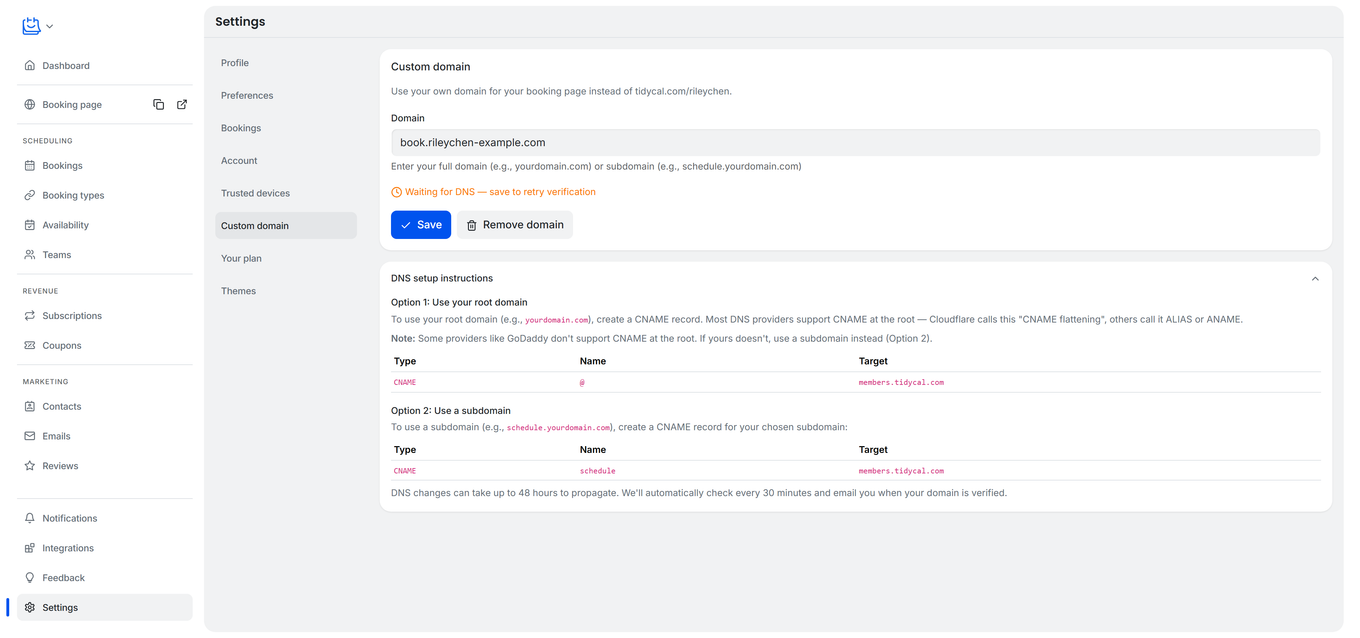
- Go to Settings in the sidebar
- Click Custom domain in the Settings sidebar
- Enter your domain or subdomain in the Domain field (e.g.,
schedule.yourdomain.comoryourdomain.com) - Click Save
- TidyCal automatically checks your DNS configuration. You will see one of two statuses:
- DNS configured (green check) — your domain is verified and working. Click test your domain to open it in a new tab.
- Waiting for DNS — save to retry verification (orange clock) — DNS records are not yet detected. Configure your DNS (see below), then click Save again to retry.
You don't have to keep clicking Save. For 48 hours after you add a domain to your account, TidyCal re-checks it every 30 minutes and emails you once it verifies. Below the form, DNS setup instructions detects your DNS provider and shows steps for it. Team domains are only re-checked when you click Save.
Tip: The domain field automatically strips http://, https://, and trailing slashes from your input.
DNS Configuration
After saving your domain in TidyCal, you need to add a DNS record at your domain registrar. Choose the option that matches your setup:
Option 1: Use Your Root Domain
To use your root domain directly (e.g., yourdomain.com), create a CNAME record. This only works if your DNS provider accepts a CNAME at the root — see the note below the table:
| Type | Name | Target |
|---|---|---|
| CNAME | @ | members.tidycal.com |
What is CNAME flattening? The DNS standard does not allow CNAME records on root domains. Some DNS providers, such as Cloudflare, accept a CNAME at the root anyway and resolve it to an A record behind the scenes (“CNAME flattening”). Amazon Route 53 uses an alias instead: create an A record with Alias switched on. GoDaddy, Namecheap and Squarespace (formerly Google Domains) do not support a CNAME at the root — use a subdomain, or move your DNS management to a provider that does (such as Cloudflare).
Root domains verify automatically. When your DNS provider flattens a root CNAME into A records, TidyCal verifies your domain by matching those A records to its own servers—so apex domains (including Cloudflare-flattened ones) verify even before the SSL certificate is issued. You don’t need to add an A record yourself; keep the CNAME on your root domain pointing to members.tidycal.com.
Option 2: Use a Subdomain
Create a CNAME record for subdomains like schedule.yourdomain.com, book.yourdomain.com, or meet.yourdomain.com:
| Type | Name | Target |
|---|---|---|
| CNAME | your-subdomain (e.g., schedule) |
members.tidycal.com |
Registrar-Specific DNS Setup
Many domain registrars automatically append your domain name to the Host/Name field when adding DNS records. This means you must enter only the subdomain portion, not the full domain. Here is how it works for popular registrars:
GoDaddy
Important: GoDaddy does not support CNAME records on root domains. If you want to use your root domain (e.g., yourdomain.com), either use a subdomain (e.g., schedule.yourdomain.com) or transfer your DNS management to a provider that supports CNAME flattening (such as Cloudflare).
- Log in to your GoDaddy Domain Manager
- Select your domain and go to DNS → DNS Records
- Click Add New Record
- Set the record type:
- Type: CNAME
- Name: Enter
scheduleonly (GoDaddy auto-appends.yourdomain.com) - Value:
members.tidycal.com
- Click Save
Namecheap
Important: Namecheap does not support a CNAME at the root domain. Use a subdomain (e.g., schedule.yourdomain.com), or move your DNS management to Cloudflare.
- Log in to your Namecheap account
- Go to Domain List → click Manage next to your domain
- Click the Advanced DNS tab
- Click Add New Record
- Add the record:
- Type: CNAME Record
- Host: Enter
scheduleonly (Namecheap auto-appends.yourdomain.com) - Value:
members.tidycal.com
- Click the green checkmark to save
Google Domains / Squarespace Domains
Important: Squarespace Domains (formerly Google Domains) does not support a CNAME at the root domain. Use a subdomain, or move your DNS management to Cloudflare.
- Log in to Squarespace Domains and select your domain
- Click DNS in the left sidebar, then DNS Settings
- Scroll to Custom records and click Add record
- Set Type to CNAME, Host name to your subdomain (e.g.,
schedule), and Data tomembers.tidycal.com - Click Save
Cloudflare
- Go to your domain's DNS tab in the Cloudflare dashboard
- Click Add Record
- For a subdomain: Set Type to CNAME, enter the subdomain name (e.g.,
schedule), and set Target tomembers.tidycal.com. - For a root domain: Set Type to CNAME, enter
@as the Name, and set Target tomembers.tidycal.com. Cloudflare automatically applies CNAME flattening for root domains.
Note: Cloudflare may turn the proxy on by default (orange cloud). Set the record to DNS only (grey cloud) and keep it that way — proxied mode can interfere with SSL on your custom domain.
Other Registrars (DreamHost, Hover, etc.)
The same rule applies: enter only the subdomain portion in the Host/Name field. Do not enter the full domain, or the registrar will create a doubled record like schedule.yourdomain.com.yourdomain.com.
Note: DNS changes can take up to 48 hours to propagate, though most updates take effect within a few minutes to a few hours.
How Custom Domains Work
Once your domain is verified:
- Visitors to your custom domain (e.g.,
schedule.yourdomain.com) see your TidyCal booking page directly - Booking types use clean URLs:
schedule.yourdomain.com/meeting-slug(not/your-username/meeting-slug) - Your original
tidycal.com/your-usernameURL continues to work alongside the custom domain - Each TidyCal account can have one custom domain
- Verified-domain lookups are cached for up to 5 minutes for performance
Grandfathered Individual Lifetime Access
If you purchased your Individual Lifetime plan before the April 2026 Pro launch, your account is grandfathered into custom domain access — you can keep using your custom domain at no additional cost.
New Individual Lifetime purchases (post-launch) do not include custom domain. To unlock custom domain on a new Individual Lifetime account, subscribe to Pro ($12/month or $99/year). Agency Lifetime purchased on or after September 1, 2026 does not include a custom domain either. See Upgrading Your TidyCal Plan for the upgrade flow.
Custom Domains for Teams
Teams can have their own custom domain, separate from your personal account's custom domain. The team domain replaces the default tidycal.com/team/your-team-slug URL with your branded URL.
On Pro, or Agency Lifetime purchased before September 1, 2026, you can run several branded URLs from one TidyCal account — one custom domain on your personal booking page, plus one on each team you own.
Team Domain Prerequisites
- The team owner must have Pro, or Agency Lifetime purchased before September 1, 2026. The team setting follows the owner's plan, not yours.
- You must be the team owner or a team member with the Owner or Admin role.
- Each team can have one custom domain, distinct from any user-level custom domain.
How to Set Up a Team Custom Domain
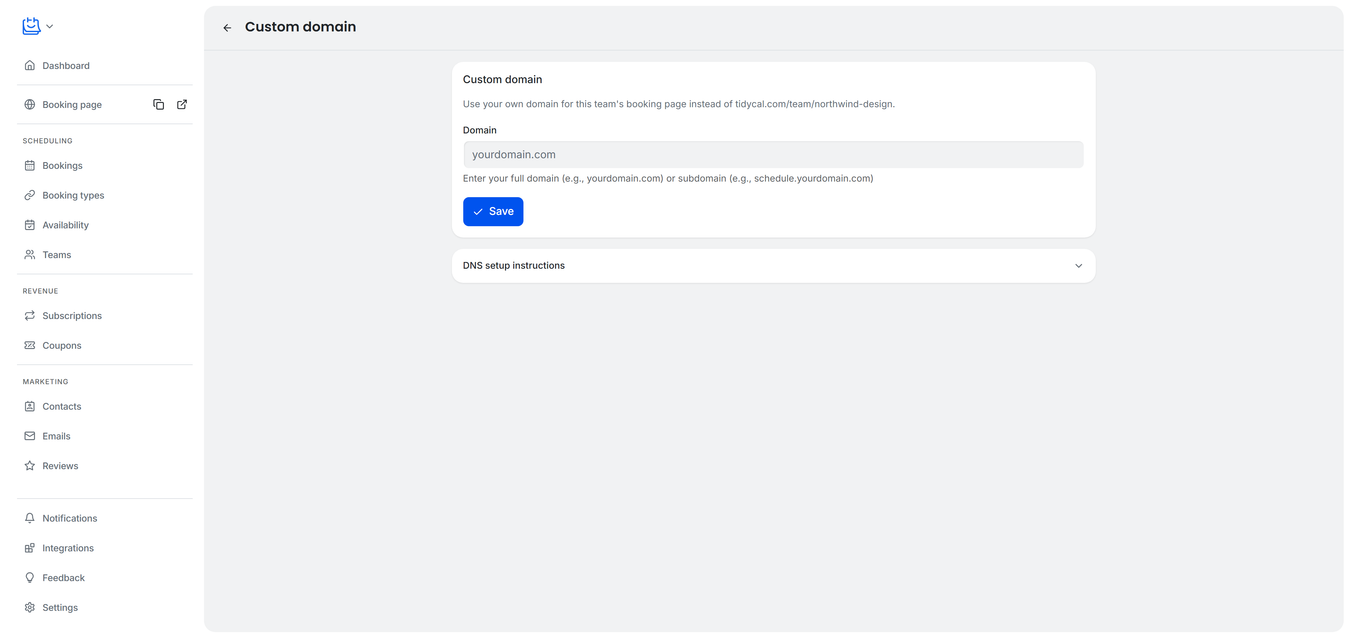
- Go to Teams in the sidebar.
- On the team's card, click the … (More options) menu, then click Custom domain.
- Enter your domain or subdomain in the Domain field (e.g.,
team.yourcompany.com). - Click Save.
- Configure DNS at your registrar with the same CNAME instructions as above — target
members.tidycal.com.
Team Domain vs Your Personal Domain
- A user custom domain serves your personal booking page (
tidycal.com/your-username) and any booking types under it. - A team custom domain serves a specific team's booking page (
tidycal.com/team/your-team-slug) and the team's booking types. - You can have both at the same time, on different domains.
- A domain can belong to only one TidyCal account or team. If another account or team already uses it, you will see an “already in use” error.
Removing a Custom Domain
- Go to Settings → Custom domain (for your personal domain) or to the team's Custom domain page (for a team domain).
- Click the Remove domain button.
- In the confirmation dialog, click Remove domain to confirm.
- Your booking page will revert to
tidycal.com/your-username(ortidycal.com/team/your-team-slugfor a team).
Known Limitations on Custom Domains
Custom domains work the same as your default tidycal.com booking page with two exceptions:
reCAPTCHA Not Available
reCAPTCHA spam protection does not work on custom domains. The reCAPTCHA site key is registered for tidycal.com only, so the verification script is not loaded when your booking page is served from a custom domain. If you have reCAPTCHA enabled in Settings, it will only apply to bookings made through your tidycal.com URL.
Mutual Availability Not Supported
The mutual availability toggle (which lets bookers compare their calendar with yours) is hidden on custom domain booking pages. This feature requires session cookies scoped to tidycal.com, which are not sent when the page is served from a different domain.
SSL and HTTPS
SSL certificates are automatically provisioned for your custom domain. You do not need to purchase, upload, or configure an SSL certificate.
- Automatic provisioning: Once your DNS is verified, an SSL certificate is automatically issued for your custom domain.
- HTTPS enabled: Your custom domain is accessible via
https://with no additional setup. - First visit: The certificate is issued on demand after your domain verifies, so the very first visit can be slower than later ones.
Troubleshooting
SSL certificate not loading immediately
The SSL certificate is issued on demand after DNS verification, so the first visit to your custom domain can be slower. If HTTPS still does not work after a few minutes:
- Verify your CNAME record is correctly pointing to
members.tidycal.com. - Clear your browser cache and try again.
- Try accessing the domain from a different browser or device.
- If the issue persists, contact support@tidycal.com.
DNS Not Verified After Adding Records
- DNS changes can take up to 48 hours to propagate. Wait and try again.
- Click Save to retry DNS verification (there is a 30-second cooldown between attempts).
- Ensure your CNAME record points to
members.tidycal.com(notwww.tidycal.comor another address). - If using a root domain with CNAME flattening (for example Cloudflare), ensure the CNAME at
@targetsmembers.tidycal.com. TidyCal uses HTTP-based verification as a fallback when DNS-level CNAME lookups don't resolve (common with CNAME flattening). - If your DNS provider does not support root CNAMEs (GoDaddy, Namecheap, Squarespace), use a subdomain instead.
- Using Cloudflare? Make sure the record is set to DNS only (grey cloud), not proxied.
Domain Already in Use
- Each domain can be connected to only one TidyCal account or team. If you see “This domain is already in use by another account.”, “This domain is already in use by a team.” or “This domain is already in use by another team.”, the domain is registered elsewhere on TidyCal.
- If you own the domain and believe it was added in error, contact support@tidycal.com for assistance.
Seeing an Upgrade Prompt Instead of the Domain Form

- Custom domains require Pro, or Agency Lifetime purchased before September 1, 2026. Free Plan, new Individual Lifetime and new Agency Lifetime purchases see an Unlock custom domain by upgrading button. It opens the TidyCal pricing page or, for accounts that bought through AppSumo, your AppSumo upgrade page.
- If you purchased Individual Lifetime before the April 2026 Pro launch, your account is grandfathered. If you still see the upgrade prompt, contact support@tidycal.com to verify your account's status.
- For team custom domains, the team owner must have Pro or an Agency Lifetime license purchased before September 1, 2026 — even if you (the viewer) personally have Pro, the team setting follows the team owner's plan.
Custom Domain Not Loading After Verification
- Ensure your domain shows a green checkmark (“DNS configured”) in Settings → Custom domain (or the team's Custom domain page).
- Try clearing your browser cache or using an incognito window.
- Verified domain lookups are cached for up to 5 minutes. If you just verified, wait a moment and refresh.
- If the issue persists, contact support@tidycal.com.
Frequently Asked Questions
Can I use my root domain (e.g., yourdomain.com) instead of a subdomain?
Yes. Create a CNAME record with the name @ and the target members.tidycal.com. Your DNS provider must accept a CNAME at the root (“CNAME flattening”) — Cloudflare does, and Amazon Route 53 offers an alias record instead. GoDaddy, Namecheap and Squarespace do not: use a subdomain like schedule.yourdomain.com or transfer your DNS management to Cloudflare.
What happens when I remove my custom domain?
Your booking page immediately reverts to tidycal.com/your-username (or tidycal.com/team/your-team-slug for a team). Any visitors to the old custom domain will no longer be redirected to your booking page. You can add a new custom domain at any time.
What happens to my custom domain if my plan lapses?
Custom domains require Pro, or an Agency Lifetime license purchased before September 1, 2026. If that access ends — for example a Pro subscription is cancelled, or a legacy Individual Lifetime account loses grandfathered access — TidyCal stops serving your booking page on the custom domain and your booking links revert to tidycal.com/your-username. Your domain record and DNS verification are kept, so custom-domain access resumes as soon as you are back on an eligible plan. Share the tidycal.com link in the meantime, and re-check any invitations or embeds that used the custom domain.
Does my custom domain work with team booking pages?
It depends which custom domain you mean:
- Your personal custom domain serves your personal booking page (
tidycal.com/your-username). Team booking types are not served on it. - A team's own custom domain is a separate setting on each team. It replaces
tidycal.com/team/your-team-slugwith the branded URL. Configure it from Teams → the team card's … menu → Custom domain. Until a team has its own domain, its booking types are served ontidycal.com/team/your-team-slug. See Custom domains for teams above.
Can my team have its own custom domain?
Yes. Teams support a separate custom domain, distinct from any personal custom domain you have. The team owner needs Pro, or Agency Lifetime purchased before September 1, 2026, and team members with the Owner or Admin role can manage the domain. Each team can have one custom domain. See Custom domains for teams for the setup steps.
Can I use multiple custom domains?
Each TidyCal account supports one custom domain for your personal booking page, and each team supports one custom domain for that team's booking page. If you need to change a domain, remove the current one and add a new one.
Are there any domains I cannot use?
You cannot use tidycal.com, www.tidycal.com, app.tidycal.com, or any other *.tidycal.com subdomain as a custom domain.
Why isn't reCAPTCHA or mutual availability available on my custom domain?
reCAPTCHA requires a site key registered for the specific domain serving the page. Since the key is registered for tidycal.com, it cannot verify requests from custom domains. Mutual availability requires authentication cookies scoped to tidycal.com, which browsers do not send to other domains. Both features continue to work on your default tidycal.com/your-username URL.
Do I need to set up SSL for my custom domain?
No. An SSL certificate is provisioned automatically once your domain verifies. Your custom domain is accessible via HTTPS with no additional configuration.