
How do I set up custom intake form questions?
Add custom intake questions to a booking type in Booking types → Advanced → Questions to collect details from clients before they book. Free on all plans.
Overview
By default, TidyCal asks bookers for a name and email. Custom questions let you ask for anything else you need to prepare, such as a website address or the topic of the call. Questions are available on every plan (Free, Individual, Pro and Agency); you need a booking type to add them to.
How to add custom questions
- Go to Booking types in the sidebar.
- Click to edit the booking type you want to configure.
- In the editor sidebar, expand Advanced, then click Questions.
- Toggle on Enable questions to attendees.
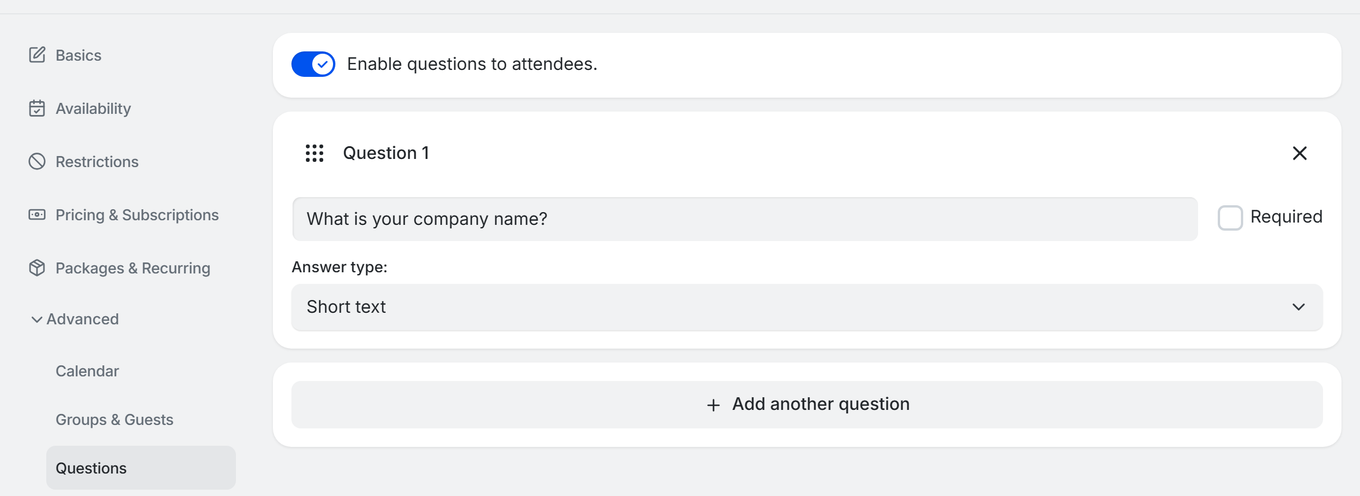
- A blank question field appears automatically. Configure it:
- Question text: Type your question (e.g., "What is your website address?").
- Answer type: Choose from: Short text, Long text, Single choice, Multiple choice, Dropdown, Date, or Phone number.
- Answer options: For Single choice, Multiple choice and Dropdown, replace Option 1 and Option 2 with your own choices, and click Add option for more.
- Required: Check this box to require an answer before the client can complete their booking.
- To add more questions, click Add another question.
- Drag questions using the grip handle to reorder them.
- Click Save at the top of the editor.
Generate questions with AI
Individual Plan, Pro, and Agency Plan users can click Generate questions with AI to have TidyCal suggest relevant questions. It uses your booking type's title and description, so give the booking type a title first. Suggested questions are added below your existing ones, and duplicates are skipped. See How to Write Booking Type Descriptions and Questions with AI.
Where do I see the answers?
When a client books and answers your questions, their responses appear in:
- The email notification you receive about the new booking (it always lists the answers).
- The booking details in your Bookings page in TidyCal.
- The calendar event on your connected Google, Outlook or Apple calendar, for one-on-one booking types. Group booking types share one event, so answers are left out. If you turned on Enable custom calendar invitation, add the answer variables (below) to the event content to include them.
- The bookings CSV export: on the Bookings page, click the Export (download) icon. Each question and answer gets its own column. Exporting is available on paid plans.
Answer variables: in a custom confirmation email or custom calendar invitation, use {{questions.0}} and {{answers.0}} for the first question, {{questions.1}} and {{answers.1}} for the second, and so on. See the TidyCal Email Template Variables Reference.
Troubleshooting
Questions not showing on booking page
- Confirm the Enable questions to attendees. toggle is on.
- Make sure you clicked Save after adding your questions.
I can't save the booking type
- Every question needs text. Delete any empty question (the X next to it) before clicking Save.
Answers not appearing in notifications
- Check that the question was marked as Required. Non-required questions may be skipped by clients.
- If you use a custom confirmation email or a custom calendar invitation, add the answer variables yourself (
{{questions.0}},{{answers.0}}and so on); see How to Customize Email Templates for Booking Confirmations. - Contact support@tidycal.com if answers are missing consistently.
Frequently Asked Questions
How many questions can I add?
There is no hard limit. However, we recommend keeping it to 3-5 questions to avoid discouraging bookings.
How do I remove questions?
Click the X on a question to delete it, then click Save. Turning off Enable questions to attendees. and saving removes all questions from the booking type.
Can I use questions on the Free Plan?
Yes. Custom intake questions are available on all plans, including the Free Plan. (Generating questions automatically with Generate questions with AI requires a paid plan — Individual, Pro, or Agency.)