
Automated Emails Before and After Bookings
Send automated emails to contacts before or after each booking. Go to Emails in the sidebar to turn on up to 3 emails with your own timing, subject and message.
Overview
Automated emails let you send messages to contacts before or after their bookings, on a schedule you choose. Common uses include:
- Sending a reminder or prep instructions before the booking
- Requesting a review or feedback after the booking
- Sending a thank-you message
- Re-engaging contacts to book again
Available on all plans (Free Plan, Individual Lifetime, Agency Lifetime and Pro). Maximum of 3 automated emails per account.
Automated emails are separate from booking reminders, which you set per booking type; see How to Customize Email Reminder Timing and Content.
Getting Started
How to Access
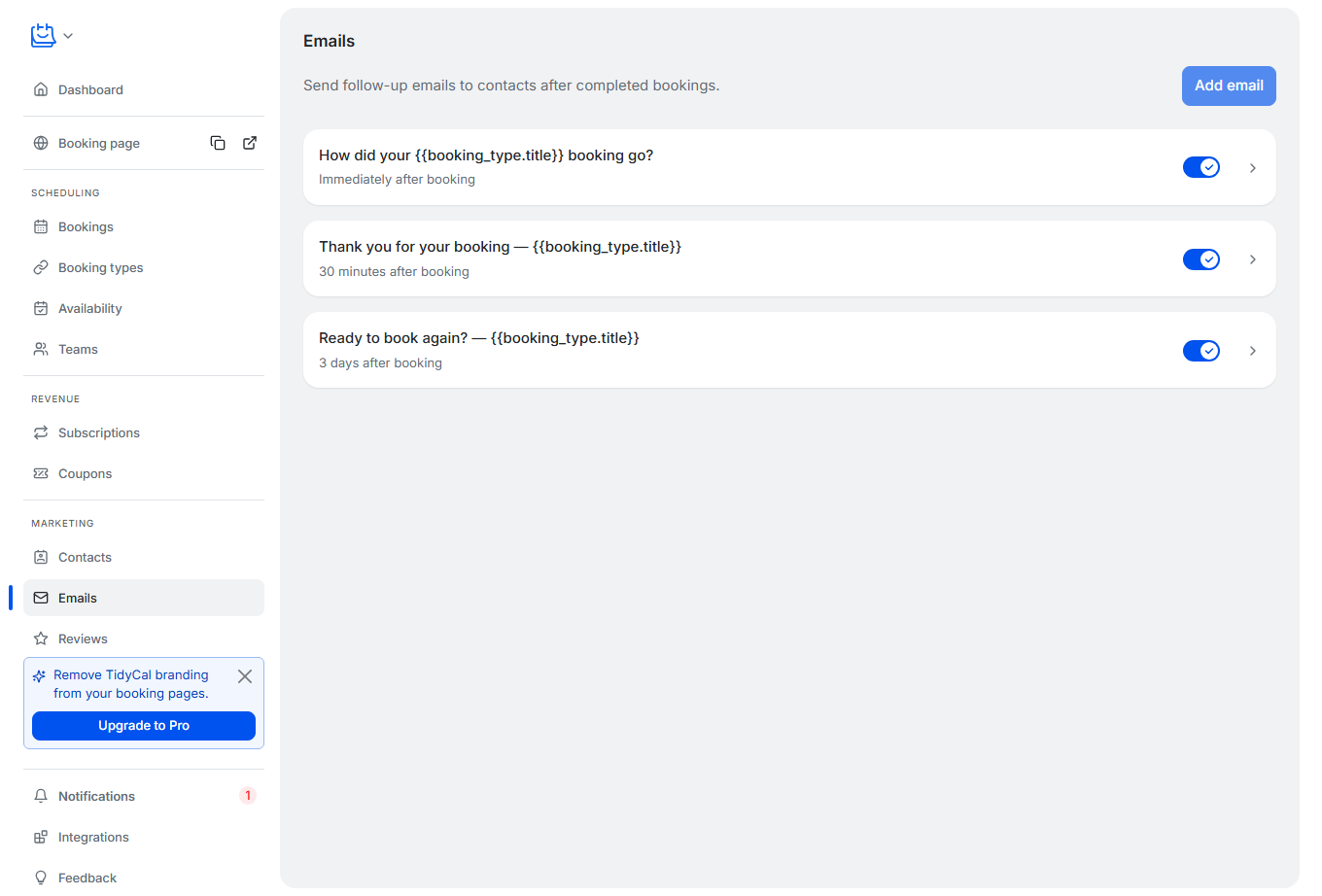
- In the sidebar, under the Marketing section, click Emails
The page lists your automated emails — the scheduled before- and after-booking messages described in this article. To share a booking link yourself, see How do I share my TidyCal booking link?
Every new account comes with 3 default emails. For new accounts these arrive turned off, so you choose whether to use them:
| Default Email | Timing | Purpose |
|---|---|---|
| How did your {{booking_type.title}} booking go? | Immediately after booking | Request a review (includes review link) |
| Thank you for your booking — {{booking_type.title}} | 30 minutes after booking | Thank-you follow-up |
| Ready to book again? — {{booking_type.title}} | 3 days after booking | Re-engagement (includes booking page link) |
You can edit or delete these defaults. Because the limit is 3 emails, delete one of them before you create your own.
Turning on post-booking emails (new accounts): So that nothing is sent to your contacts without your consent, the 3 default emails are created disabled for new accounts. A (1) badge appears next to Emails in the sidebar until you enable at least one, and a one-time prompt on the Emails page invites you to turn them on. To start sending, switch each email's toggle on. Accounts created before this change keep their emails enabled.
Creating an Automated Email
- In the sidebar, under Marketing, click Emails
- Click Add email. If you already have 3 emails (every account starts with 3 defaults), the button is greyed out: delete one of your emails first.
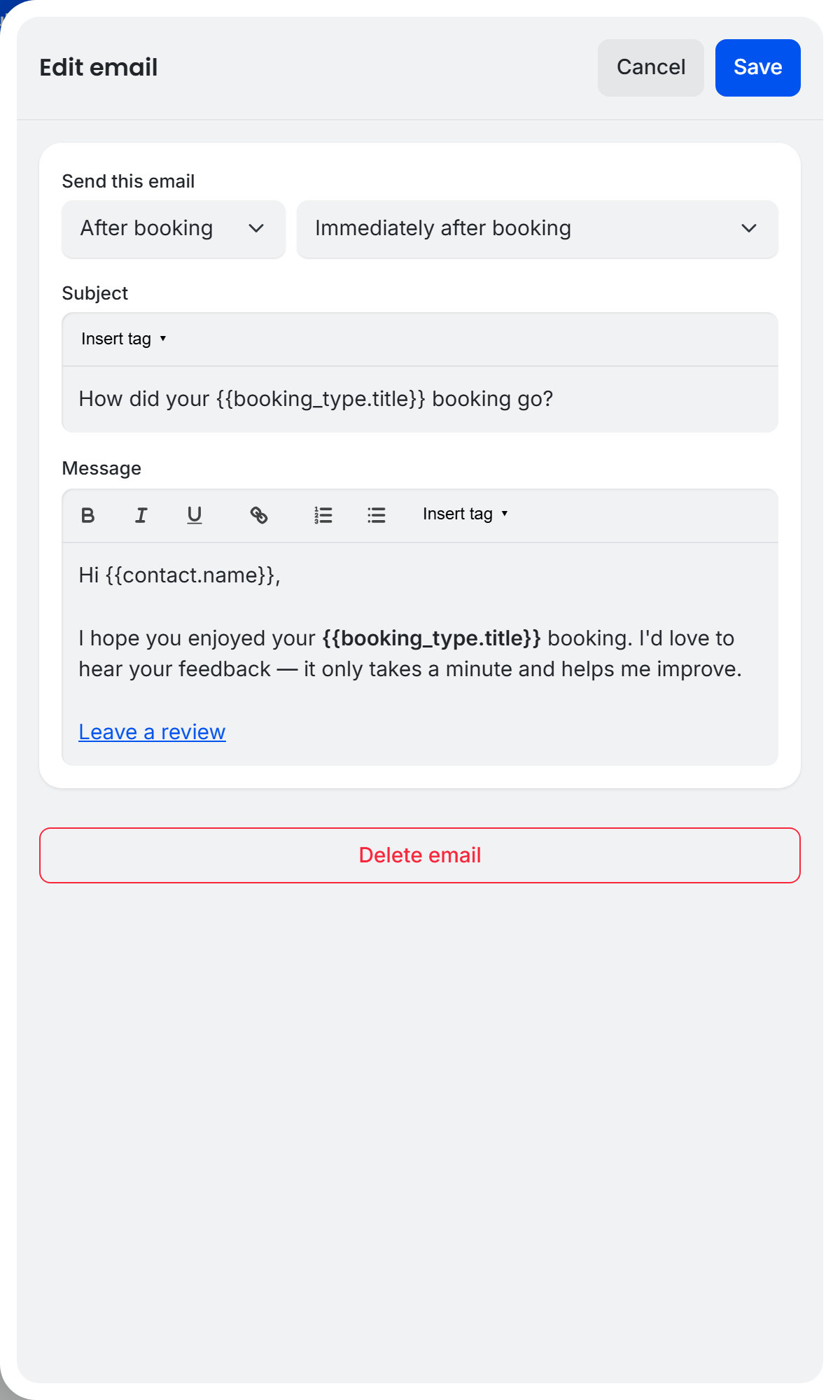
- Under Send this email, choose After booking or Before booking, then pick the timing:
- After booking: immediately, 30 minutes, 1 hour, 3 hours, 1 day, 3 days, 7 days, or 14 days after
- Before booking: 15 minutes, 30 minutes, 1 hour, 3 hours, 1 day, 3 days, or 7 days before
- Enter the Subject line (max 500 characters). You can use template variables like
{{booking_type.title}} - Write the Message using the editor (bold, italic, underline, links and lists; max 65,535 characters). Use Insert tag to add a template variable.
- Click Save. An email you create is turned on straight away.
Template Variables
Use these variables in the subject and body. They are automatically replaced with real values when the email is sent. For every variable TidyCal supports, see the TidyCal Email Template Variables Reference.
| Variable | Description |
|---|---|
{{contact.name}} |
Contact's full name |
{{contact.email}} |
Contact's email address |
{{booking_type.title}} |
Booking type name |
{{booking_type.booking_page_url}} |
Public booking page link |
{{booking.date}} |
Booking date |
{{booking.time}} |
Booking time |
{{booking.review_url}} |
Link for the contact to leave a review |
{{user.name}} |
Your name (the host) |
Enabling and Disabling Emails
Global Enable/Disable
Each email has a toggle switch on the Emails page. When disabled, the email will not be sent for any booking type.
Per-Booking-Type Control
You can enable or disable each automated email for specific booking types:
- Edit a booking type
- Expand the Advanced section in the left navigation and click Notifications
- Scroll to the Automated emails section, switch each email on or off for this booking type, then click Save
On a team booking type, the booking type owner's automated emails are used. Other team members can switch them off for that booking type but cannot edit them.
This per-booking-type setting is separate from each email's global toggle on the Emails page — an email sends only when it is enabled both globally and for that booking type. By default, each automated email is enabled for all booking types, and disabling one for a specific booking type only affects that booking type.
How Sending Works
- TidyCal checks for eligible emails every 15 minutes, so delivery may be a few minutes after the scheduled time
- After-booking emails are timed from when the booking ends; before-booking emails are timed from when the booking starts (for example, "1 day before booking" sends about 24 hours before the start time)
- Emails are not sent if the booking is cancelled before the scheduled send time
- Every automated email ends with an Unsubscribe link. A contact who unsubscribes stops receiving all of your automated emails; their booking confirmations and reminders are not affected
- If someone books inside a before-booking email's window (for example, 2 hours ahead with a "1 day before booking" email), the email goes out at the next check
- Each email is sent only once per booking (duplicates are prevented)
- Emails are sent from TidyCal's email address with your name as the sender name. The reply-to address uses your booking type's custom reply-to (if set) or your account email
Editing and Deleting Emails
- Click any email on the Emails page to open the editor
- Change the timing, subject, or message and click Save
- To delete, click Delete email at the bottom of the editor and confirm. This cannot be undone.
Troubleshooting
Email not being sent
- Check that the email is enabled (toggle on) on the Emails page. On new accounts the default emails start turned off, so you must enable them first
- Check that the email is enabled for the specific booking type (Advanced → Notifications → Automated emails)
- For an after-booking email, the booking must have ended first. Turning an email on does not send it for bookings that had already ended, and an email more than 24 hours past its send time is skipped
- If the booking was cancelled, the email will not be sent
- Emails are checked every 15 minutes, so there may be a short delay
Cannot add more emails
The limit is 3 automated emails per account. Delete an existing email to create a new one.
Frequently Asked Questions
Which plans include automated emails?
All plans (Free Plan, Individual Lifetime, Agency Lifetime and Pro) include automated emails.
Can I create more than 3 automated emails?
No. The limit is 3 automated emails per account. You can customize the timing, subject, and content of each one.
Are emails sent for no-shows and unapproved bookings?
No. Post-booking emails and review requests are skipped for bookings you have marked as a no-show, and for bookings still awaiting approval on a booking type that uses booking approval. An unapproved booking only becomes eligible once you approve it.
Are automated emails on by default?
For new accounts, no. The 3 default post-booking emails are created turned off so nothing is sent to your contacts until you opt in. Open the Emails page and switch each email's toggle on to start sending. Accounts created before this change keep their emails enabled.