
How to Use Date Polls in TidyCal
Date polls let you propose multiple dates and times for a meeting and let participants vote on their preferred options. Available on all TidyCal plans (Free, Individual, Agency, and Pro), date polls are ideal for group scheduling when you need to find a time that works for everyone.
Overview
Unlike regular booking types where attendees pick from your open availability, date polls let you:
- Propose specific dates and times for a meeting.
- Share a voting link with participants.
- See which dates get the most votes.
- Book the winning date with one click, automatically creating bookings and sending invitations to all voters.
Plan availability: All plans (Free, Individual, Agency, and Pro).
Creating a Date Poll
- Click the TidyCal logo in the top-left of the sidebar to open the dropdown menu.
- Click Polls.
- Click Create date poll.
- Fill in the poll details:
- Title — Name your poll (e.g., "Q2 Planning Meeting").
- Duration — Set the meeting length.
- Description (optional) — Add context for participants.
- Location (optional) — Set a meeting location (Zoom, Google Meet, phone, custom, etc.).
- Use the calendar editor to add your proposed dates and times (see next section).
- Save the poll.
Using the Calendar Editor
The calendar editor gives you three view modes for adding dates and times to your poll. Switch between them using the segmented control at the top:
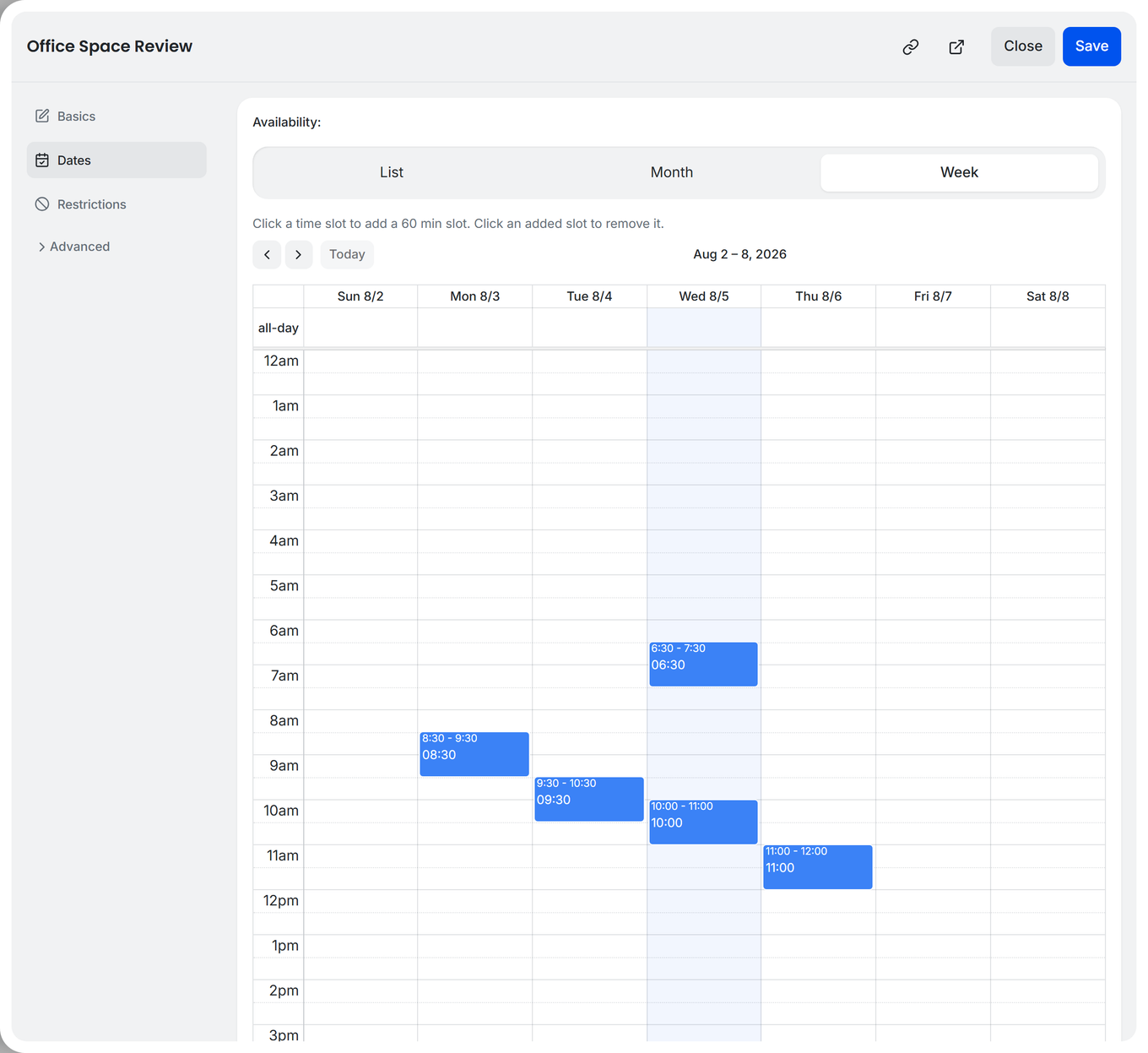
The default view. Shows a weekly calendar grid with time slots.
- Click any time slot to add it to the poll. The slot duration matches your poll's meeting length.
- Click an added slot (shown in blue) to remove it.
- Use the left/right arrows to navigate between weeks.
If you have connected calendars, busy times appear as grey background blocks, helping you avoid scheduling conflicts.
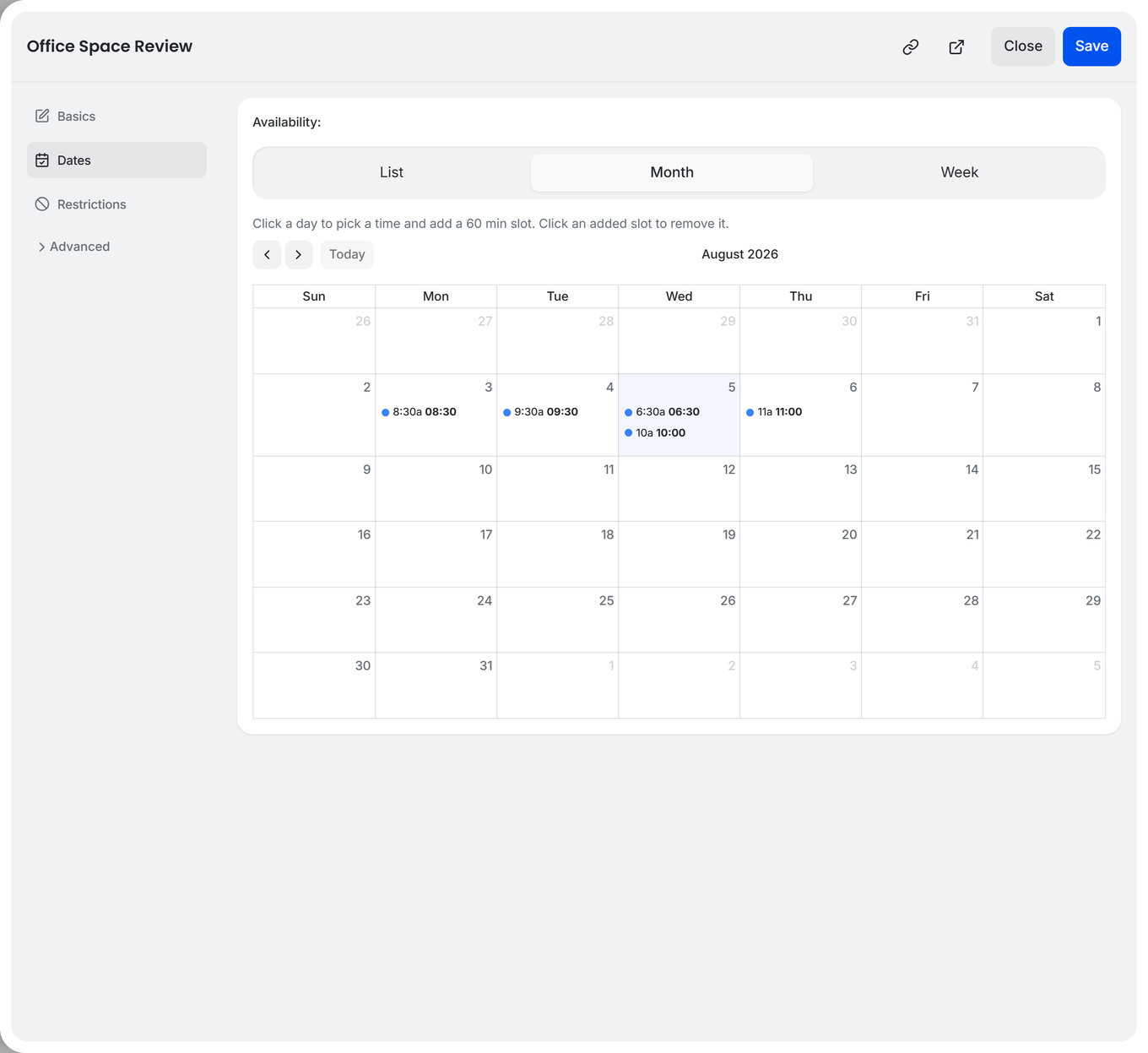
Shows a monthly calendar overview.
- Click a day to open a time picker popover.
- Set the hour and minute for your proposed time.
- Click Add slot to confirm, or Cancel to dismiss.
- The popover shows when the slot ends based on your poll's duration.
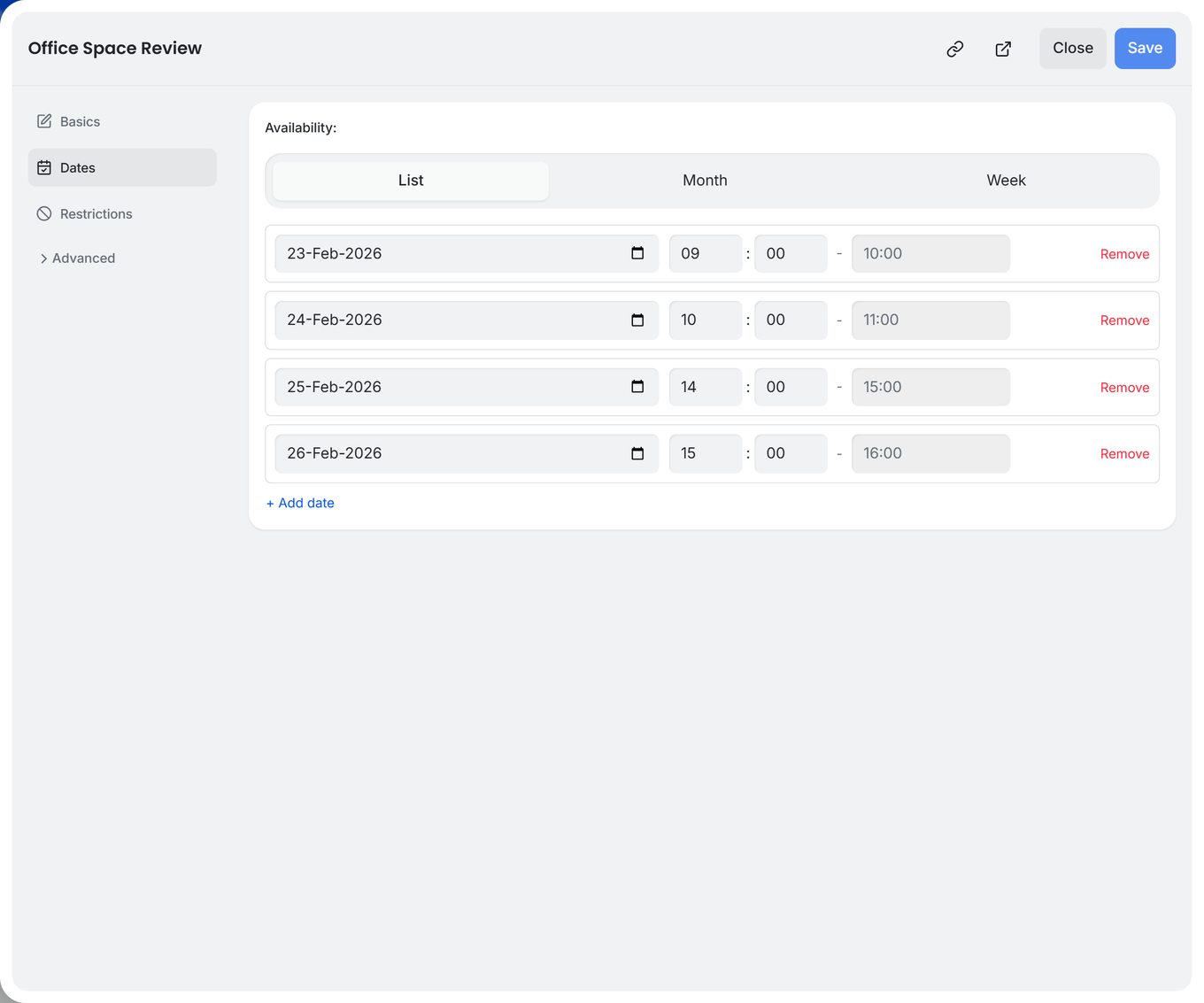
A manual entry view with date and time fields.
- Each row has a date picker and time selectors (hour, minute, and AM/PM if using 12-hour format).
- Click + Add date to add a new entry.
- Click Remove to delete an entry.
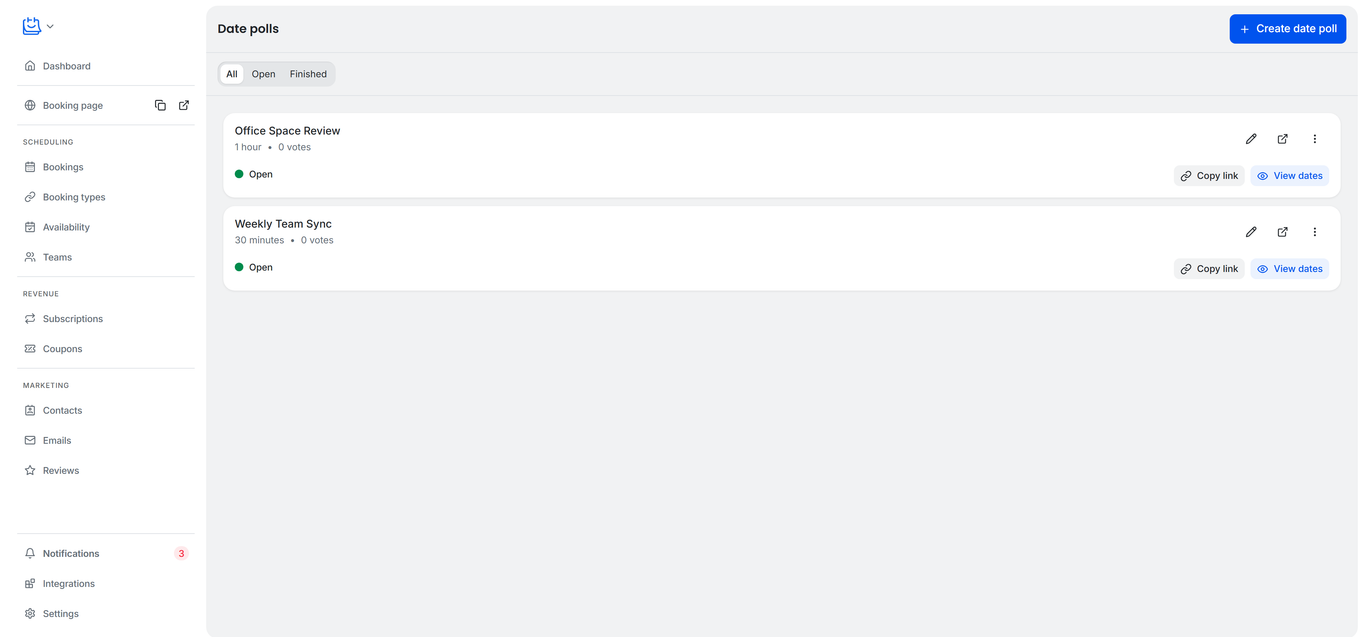
The Date polls page shows all your polls as cards. Each card displays the poll title, duration, vote count, and status.
Poll Statuses
| Status | Meaning |
|---|---|
| Open | Poll is active and accepting votes. No booking has been created yet. |
| Finished | A booking has been created from this poll. |
| Cancelled | Poll has been disabled. |
Filtering Polls
Use the filter tabs at the top of the page to show All, Open, or Finished polls.
Poll Actions
Each poll card has the following actions:
- Edit (pencil icon) — Modify the poll details and dates (Open polls only).
- View booking page (external link icon) — Open the public voting page in a new tab.
- Clone — Create a copy of the poll.
- Embed — Get an embed code to add the poll to your website.
- Copy link — Copy the public voting link to your clipboard.
- Delete — Permanently delete the poll (requires confirmation).
At the bottom of each card:
- Copy link — Quick copy of the voting link.
- View dates (Open polls) / View results (Finished polls) — Opens a modal showing all proposed dates with vote counts and percentages.
Sharing and Embedding
Share Link
Click Copy link on any open poll to copy the public voting URL. Share it via email, chat, or any messaging platform.
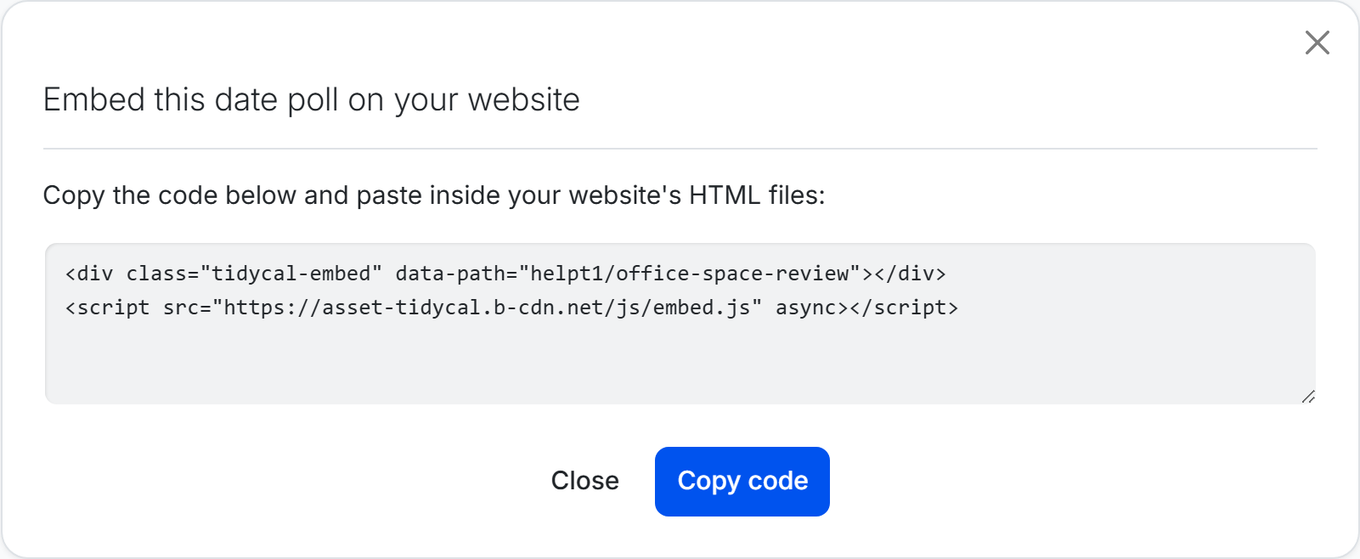
Click the three-dot menu on a poll card, then click Embed. A modal appears with the heading "Embed this date poll on your website" and an embed code snippet. Click Copy code and paste it into your website's HTML.
How Attendees Vote
- Participants open the voting link you shared.
- They see the available dates and times.
- They select their preferred dates and submit their vote.
- Their name and email are recorded with their vote.
Booking from Poll Results
Once participants have voted, you can create bookings directly from the poll results:
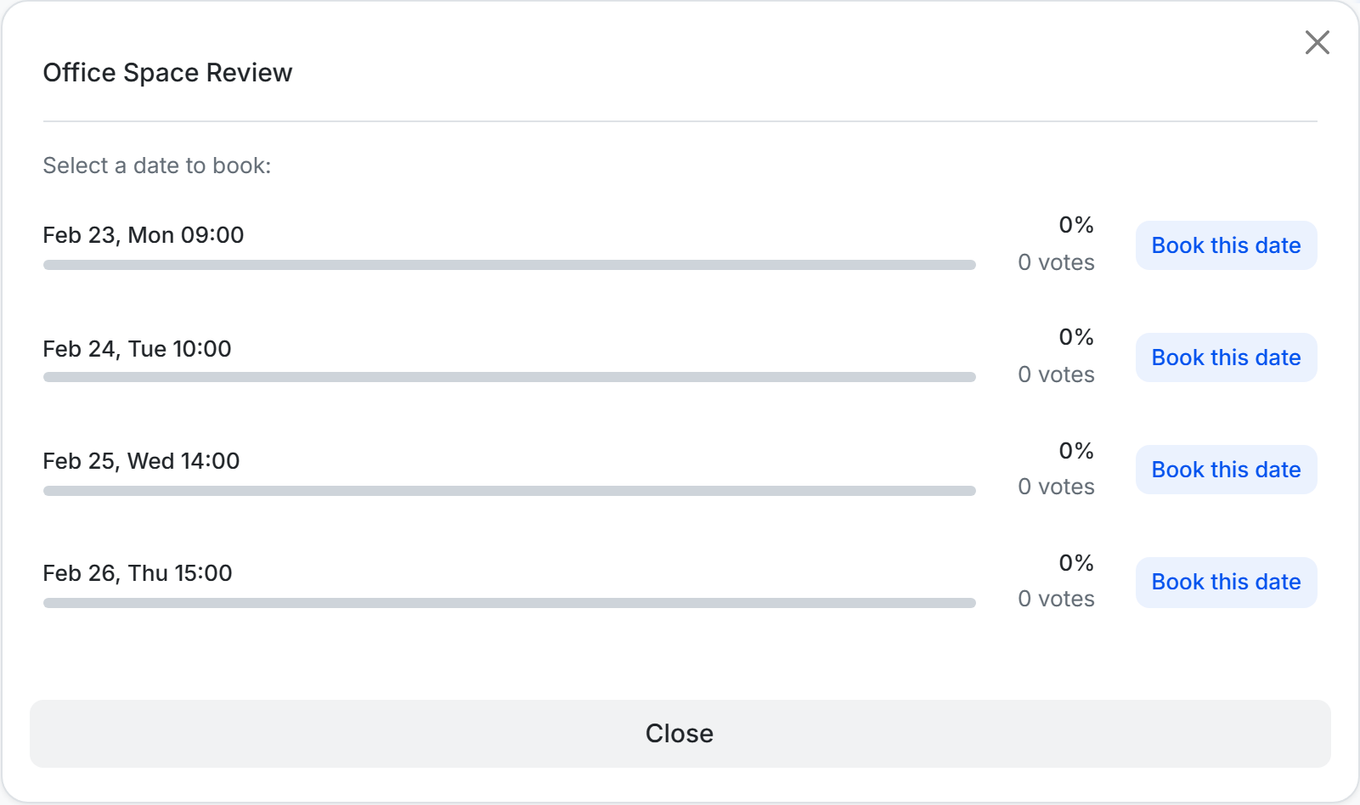
- Click View dates on an open poll to see results.
- Each date shows a progress bar with the vote percentage and the number of votes.
- Click the voter count link to see who voted for each date.
- Click Book this date next to your preferred date.
- A confirmation modal appears showing the poll title, duration, invitees (all unique voters), and location.
- Click Create bookings and send invitations to finalize.
What happens when you book:
- One booking is created per unique voter.
- All bookings share the same meeting link (Zoom, Google Meet, etc.) if a video location is configured.
- Confirmation emails are sent to each voter.
- A calendar event is added to your connected calendar.
- If no one has voted yet, clicking "Book this date" creates a single booking for you (the poll owner).
Troubleshooting
Busy times not showing in the calendar editor
Busy time overlays require a connected calendar with reading enabled. Go to Integrations > Calendars and make sure your calendar is connected and "Check for conflicts" is turned on. Busy times are fetched for the next 60 days.
Voters not receiving invitations
Invitations are sent when you click "Create bookings and send invitations." Check that voters provided valid email addresses. Also check your spam/junk folder. If the issue persists, contact support@tidycal.com.
Poll link not working
Make sure the poll status is Open. Finished or cancelled polls do not accept new votes. If you need to reuse the same dates, clone the poll to create a fresh copy.
Need more help?
Contact support@tidycal.com for assistance.
Frequently Asked Questions
Can I change poll dates after sharing?
Yes. Click Edit on an open poll to add or remove dates. Existing votes are preserved for dates that remain.
Is there a limit to the number of voters?
There is no documented limit on the number of voters per poll.
Can I use date polls with paid bookings?
Date polls support location settings (Zoom, Google Meet, phone, custom URL) but payment collection is configured on the booking type level, not on the poll itself.
Are date polls available on the Free plan?
Yes. Date polls are available on all TidyCal plans: Free, Individual, Agency, and Pro.