
Trusted Devices - Account Security
Trusted Devices is a security feature that protects your TidyCal account by verifying new devices before allowing login. When you sign in from an unrecognized device, TidyCal sends a 6-digit verification code to your email.
How Device Verification Works
When you log in from a new or unrecognized device:
- Enter your email and password as usual
- TidyCal detects the new device and sends a 6-digit code to your email
- Enter the verification code on the "Verify Your Device" screen
- Once verified, the device becomes trusted and won't require verification again
Note: Verification codes expire after 15 minutes. If your code expires, click "Resend code" to receive a new one.
First Login After Feature Launch
When this feature was introduced, your first login was automatically approved. This means existing users didn't need to verify their first device - it was trusted immediately to ensure a smooth transition.
Google Sign-In Users
If you log in using Sign in with Google, your device is automatically trusted without requiring email verification. Google's authentication serves as the verification step.
Managing Your Trusted Devices
View and manage all devices that have access to your account:
- Click Settings in the navigation menu
- Click Trusted devices in the sidebar
- View your list of verified devices with browser, IP address, and last used time
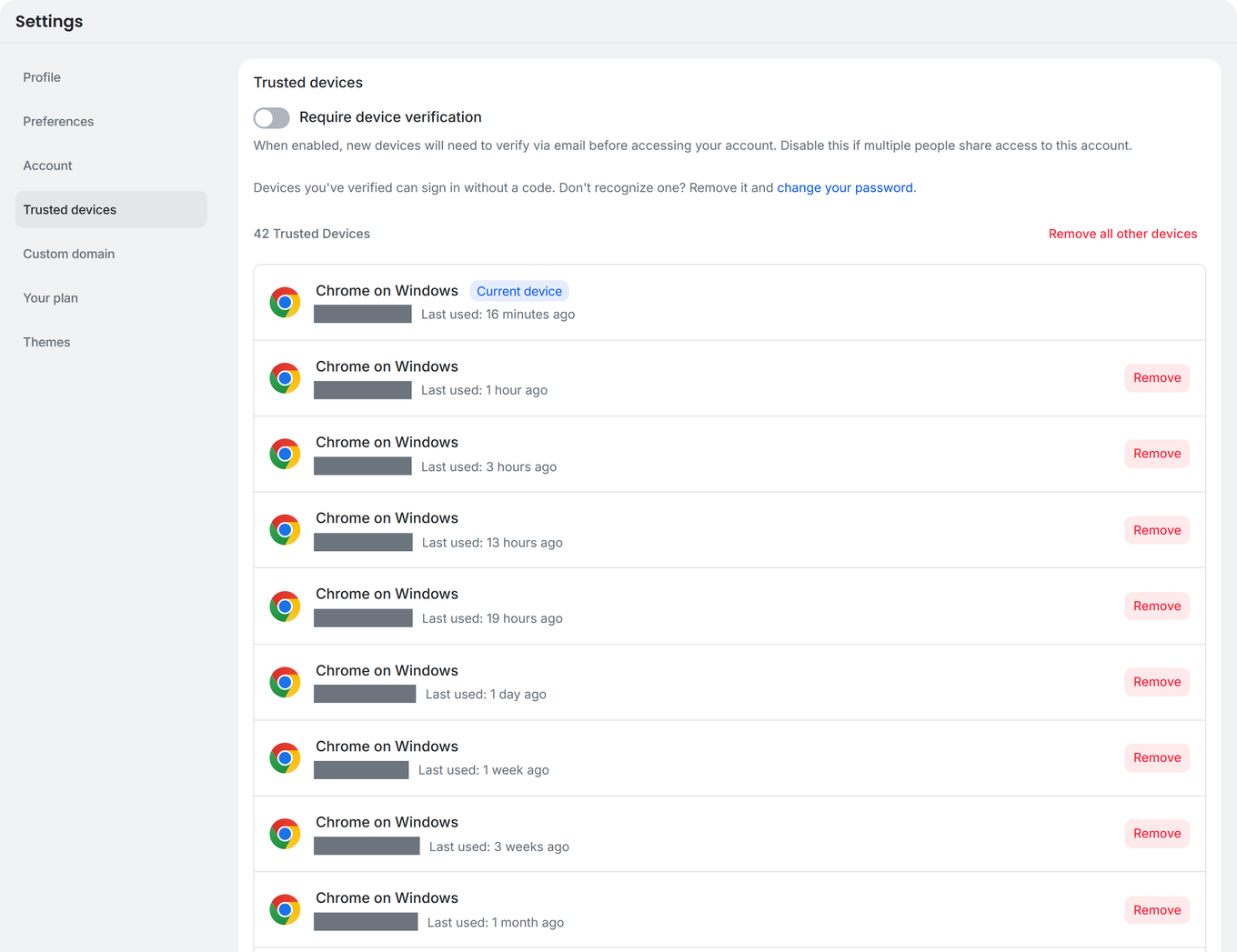
Device Information Displayed
- Browser and OS - e.g., "Chrome on Windows", "Safari on Mac", "Firefox on iPhone"
- IP Address - The IP address used when the device was verified
- Last Used - When the device last accessed your account
- Current Device - A badge indicates which device you're currently using
Disabling Device Verification
If you need to disable device verification (for example, if multiple people share access to the same account), you can turn it off:
- Go to Settings in the navigation menu
- Click Trusted devices in the sidebar
- Uncheck Require device verification
- Click Save changes
When disabled: New devices will be able to log in without email verification. This is useful for shared accounts but reduces security.
When enabled (default): New devices must verify via a 6-digit email code before accessing your account.
⚠️ Security Note: We recommend keeping device verification enabled unless you have a specific need to disable it. It provides an important layer of protection for your account.
Removing a Trusted Device
If you no longer use a device or don't recognize one in your list:
- Go to Settings → Trusted devices
- Find the device you want to remove
- Click the Remove button next to it
- Confirm the removal when prompted
After removal, that device will need to complete verification again on the next login.
Removing All Other Devices
For security purposes (such as a suspected breach), you can remove all devices except the one you're currently using:
- Go to Settings → Trusted devices
- Click Remove all other devices
- Enter your password to confirm (for security)
- Click Remove all other devices
Note: If you signed up using Google Sign-In only (no password set), you can remove all devices without password confirmation.
Security Features
- Rate Limiting - Too many incorrect code attempts will temporarily lock verification to prevent brute-force attacks
- Code Expiration - Verification codes expire after 15 minutes for security
- Secure Storage - Verification codes are securely hashed and cannot be retrieved
- Password Protection - Bulk device removal requires password confirmation
Troubleshooting
Issue: Not receiving verification code email
Fix: Check your spam/junk folder. If not there, click "Resend code" on the verification screen. Ensure your email address is correct in your account settings.
Issue: Verification code not working
Fix: Codes expire after 15 minutes. Click "Resend code" to get a fresh code. Make sure you're entering the most recent code if multiple were requested.
Issue: "Too many verification attempts" error
Fix: Wait a few minutes before trying again. The rate limiter resets after a short period.
Issue: Can't access Trusted Devices settings
Fix: You must be logged in to view Trusted Devices. Go to Settings and look for Trusted devices in the sidebar.
Issue: Don't recognize a device in the list
Fix: Remove the unrecognized device immediately using the Remove button. Then change your password in Settings → Account for extra security.
Frequently Asked Questions
Q: Will I need to verify every time I log in?
A: No. Once a device is verified, it remains trusted. You'll only need to verify again if you clear your browser cookies, use a different browser, or your device is removed from the trusted list.
Q: What counts as a "new device"?
A: A combination of your browser and a unique device identifier. Using a different browser on the same computer counts as a new device.
Q: Can I disable device verification?
A: Yes. Go to Settings and click Trusted devices in the sidebar, then uncheck Require device verification. This is useful if multiple people share access to your account. However, we recommend keeping it enabled for better security.
Q: Does this affect my booking pages?
A: No. Device verification only applies when logging into your TidyCal account. Your guests can book appointments without any verification.
Q: What happens if I lose access to my email?
A: Contact TidyCal support at support@tidycal.com for assistance recovering your account.