
Digital Storefront - Sell Digital Products with TidyCal
The TidyCal Digital Storefront lets you sell digital products — like PDFs, ebooks, templates, or services you deliver yourself — with secure Stripe checkout. Available on all plans.
Overview
The Digital Storefront turns your TidyCal account into a simple online store. You add a product, set a price, optionally attach a file, and TidyCal gives you a public store page where customers can buy it — downloading the file straight away, or hearing from you by email if there is no file. You can also attach products as optional add-ons to your paid booking types.
- Available on all plans (Free, Individual, Pro, and Agency).
- 1% TidyCal platform fee on the Free Plan, Individual Lifetime and Agency Lifetime — added to the buyer’s total at checkout (lifetime plans can choose to cover it from their payout instead). Pro has no platform fee. Stripe’s standard payment-processing fee still applies to you. See Does TidyCal charge a fee on payments?
- Payments are processed through Stripe. PayPal is not supported for the storefront.
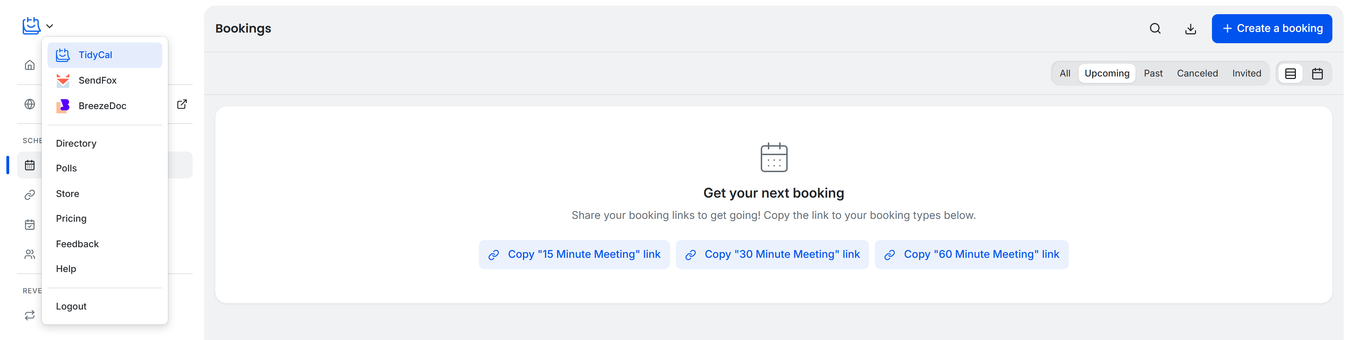
- Open it from the TidyCal logo dropdown at the top-left of the sidebar → Store. On mobile, go straight to
tidycal.com/dashboard/store— the More menu has no Store link.
Prerequisites
- A connected Stripe account. Connect one from Integrations → Payments — see Connect Your Payment Services.
- Optionally, a file to sell (PDF, EPUB, or ZIP, up to 64 MB). Products without a file work too.
Creating a Product
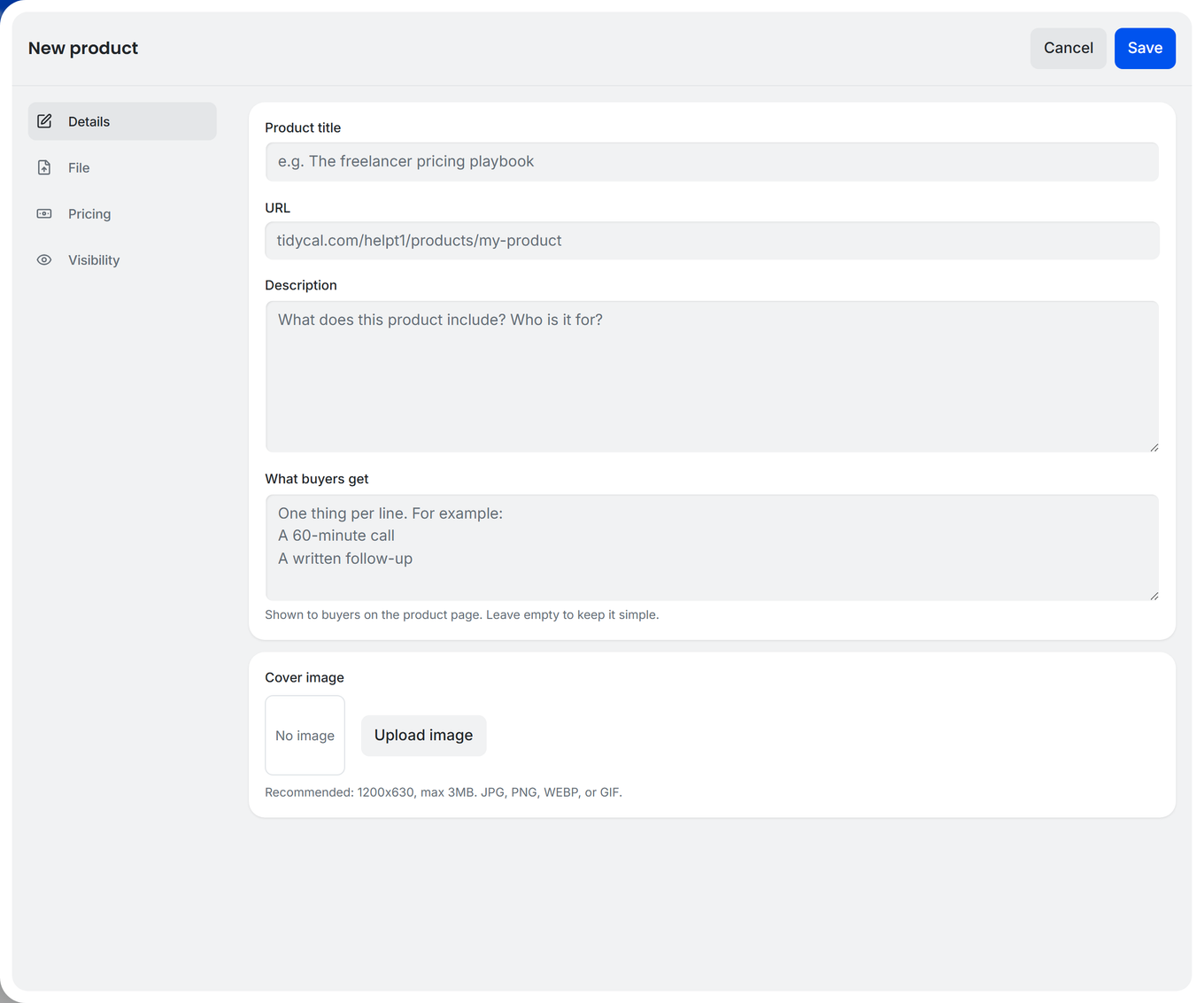
- Open Store from the TidyCal logo dropdown, then click Create product.
- Fill in the product details:
- Product title — the name shown to buyers.
- Description — what the product includes and who it’s for.
- What buyers get — an optional summary of what’s included.
- Cover image — an optional image for the product card and page.
- Price and Currency.
- Optionally, upload a Product file (PDF, EPUB, or ZIP, up to 64 MB). A product holds one file; uploading another replaces it. Leave it empty to sell a service or anything you deliver yourself — buyers get a receipt and you follow up by email.
- The Published switch is on by default — turn it off to keep the product as a draft. Click Save at the top of the drawer.
You can create products on any plan, but a connected Stripe account is required before a product can accept payment.
Publishing and Drafts
Each product is either Published (visible in your store) or a Draft (hidden). Use the Publish / Unpublish action on a product to change its status at any time. Draft products are only visible to you.
Your Public Store
Your store is available at tidycal.com/your-link/store (using the same link as your booking page). Each product also has its own page. Visitors see your name, your products, and a link back to your booking page.
If you use a custom domain (available on Pro, on Agency Lifetime purchased before September 1, 2026, and on grandfathered Individual Lifetime plans), your store, product pages, and checkout run on your custom domain instead of tidycal.com.
Use Store settings (on the Store page) to set a Store headline and Description, turn Storefront is live on or off (off makes your store and product pages unavailable; past buyers keep their downloads), and choose whether to Show products on bookings page. To change your store’s theme, open your public store page while signed in and use the theme editor there, the same as on your booking page.
How Customers Buy and Download
- A customer opens your store or a product page and clicks to buy.
- They enter their email and pay securely through Stripe. You can also apply coupon codes if you offer them.
- After payment, they land on a confirmation page and get an email receipt. For a product with a file, the email includes a download link, and on the page they click Confirm your email to download. For a product without a file, the page shows What happens next: you will reach out to them by email.
The download link in the email is valid for 72 hours. After that, the customer re-enters their purchase email on the confirmation page to get a fresh download link, valid for 15 minutes, right on the page.
Selling Products as Booking Add-ons
You can offer up to 3 published products as optional add-ons during checkout on a booking type that charges through Stripe. Buyers add them when booking and pay for everything together. See Booking Types for setup. Add-ons are not available on PayPal booking types, and each add-on product must use the same currency as the booking type.
Viewing Your Sales
Click Sales in the header of your Store page to see every order received on your storefront. Each row shows the Product, Buyer, Amount, Status, and Date, and a count of your orders appears next to the page title.

The Sales page is read-only — refunds are issued from your Stripe account, not from TidyCal. Because the storefront uses your own Stripe account, payouts are handled by Stripe and arrive on your normal Stripe payout schedule.
Troubleshooting
My product isn’t showing in my store
- Make sure the product is Published (not a Draft).
- Confirm your Stripe account is connected at Integrations → Payments — products can’t accept payment without it.
- Check that Storefront is live is turned on in Store settings.
My file won’t upload
- The storefront accepts PDF, EPUB, and ZIP files only.
- The file must be 64 MB or smaller. For larger files, compress them or host externally and sell a link inside a small PDF/ZIP.
A customer can’t download their purchase
- The emailed link expires after 72 hours. Ask the customer to open their confirmation page and re-enter the email they bought with; a fresh 15-minute download link appears right there.
- If they still can’t access it, contact support@tidycal.com.
Frequently Asked Questions
Which plans include the Digital Storefront?
All plans — Free, Individual, Pro, and Agency. You only need a connected Stripe account to start selling.
What fees does TidyCal charge on sales?
TidyCal adds a 1% platform fee to the buyer’s total at checkout, where it appears as a separate Platform fee line item. By default it is not taken out of your sale — you receive the full price you set. Stripe’s standard payment-processing fee still applies, and Stripe pays you directly.
Next to that line your buyer sees a ? icon they can hover, which shows the rate and a short note that the fee helps cover running the platform and transaction costs. The fee is calculated on the price actually paid, so a coupon reduces it along with the price.
Pro subscribers pay no platform fee on storefront sales either, and on a lifetime plan you can choose to cover the fee from your payout instead. See Does TidyCal charge a fee on payments?
Can I use PayPal for the storefront?
No. The storefront uses Stripe for checkout. (PayPal can still be used for paid bookings on individual booking types.)
What file types and sizes can I sell?
PDF, EPUB, or ZIP files, up to 64 MB. A file is optional, and each product holds at most one.
Can I sell services instead of files?
Yes. Leave the product file empty to sell a service, access or custom work you deliver yourself — the buyer gets a receipt and you follow up by email. For scheduled appointments, use a paid booking type instead.
Related Articles
- Connect Your Payment Services
- Booking Types (attach products as add-ons)
- Coupon Codes