
Coupons / Discount Codes
Create coupon codes to offer percentage, fixed-amount, or free discounts on your paid booking types and Store products. Coupons are included on every TidyCal plan.
Overview
Coupons let you create discount codes that bookers can enter during checkout to receive a reduced price on paid booking types.
- 3 discount types: Percentage off, Fixed amount off, or Free (100% off)
- All plans: Free Plan, Individual Lifetime, Pro, and Agency Lifetime all include coupons
- Navigation: Sidebar → Revenue → Coupons (ticket icon); on mobile, More → Coupons
- Scope coupons to specific booking types or apply them to all paid types
- Set validity date ranges and per-booker usage limits
- Coupons also work at checkout for your Store products. A coupon with Applies to specific booking types turned off works on all your paid booking types and all your Store products; a coupon limited to specific booking types works only on those booking types. The per-booker limit counts bookings and Store purchases together.
Creating a Coupon
- Go to Coupons in the sidebar.
- Click + New coupon (top right).
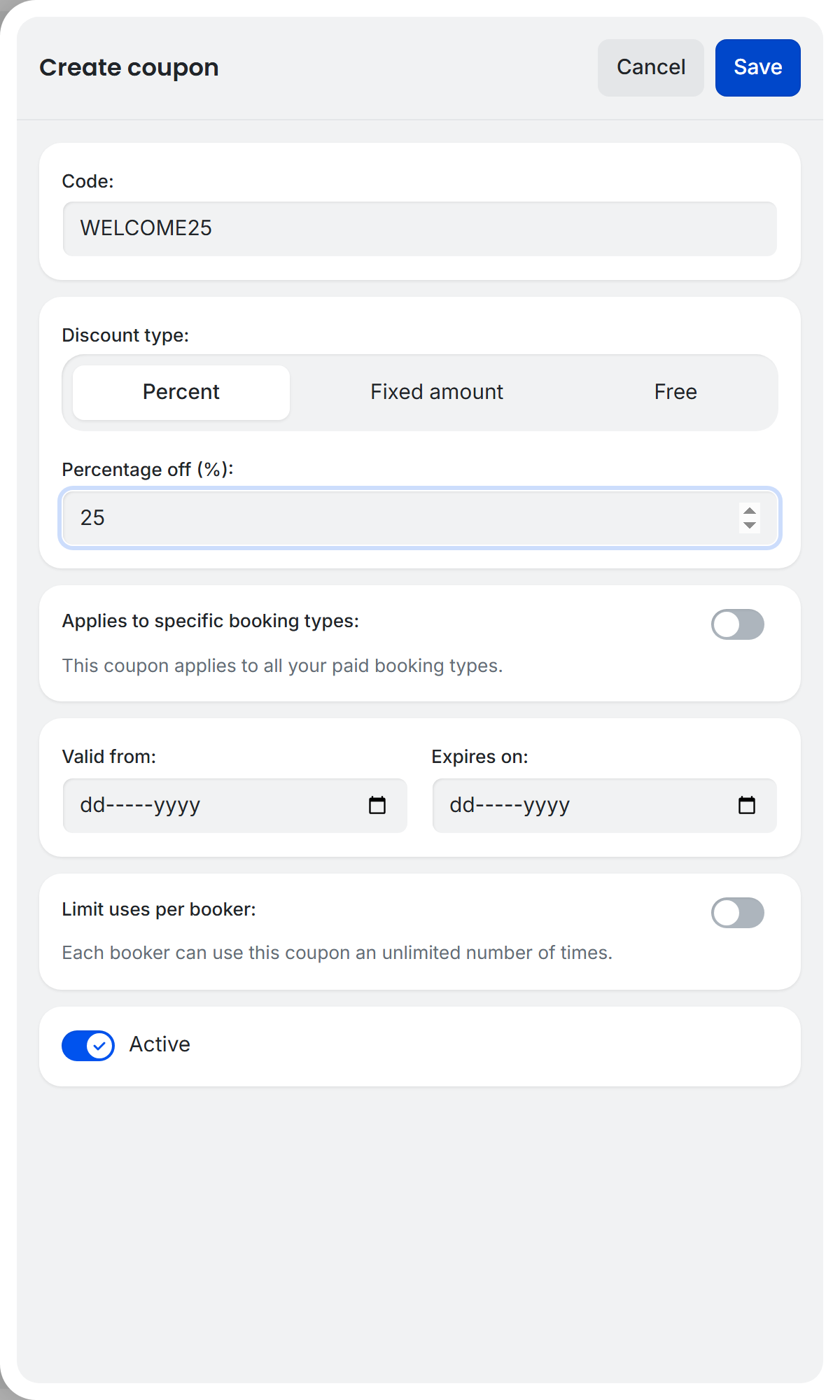
- Enter a Code — letters, numbers, dashes, and underscores only (auto-uppercased). Maximum 50 characters. Placeholder: “e.g. SUMMER20”.
- Select the Discount type using the segmented control:
- Percent — enter a Percentage off (%) value (0.01–100).
- Fixed amount — enter an Amount off value (0.01+).
- Free — no value needed; applies a 100% discount automatically.
-
Toggle Applies to specific booking types ON to restrict the coupon to certain paid booking types, or leave it OFF to apply to all paid types. When ON, use the Select a booking type dropdown to choose types and click Add booking type for additional entries.
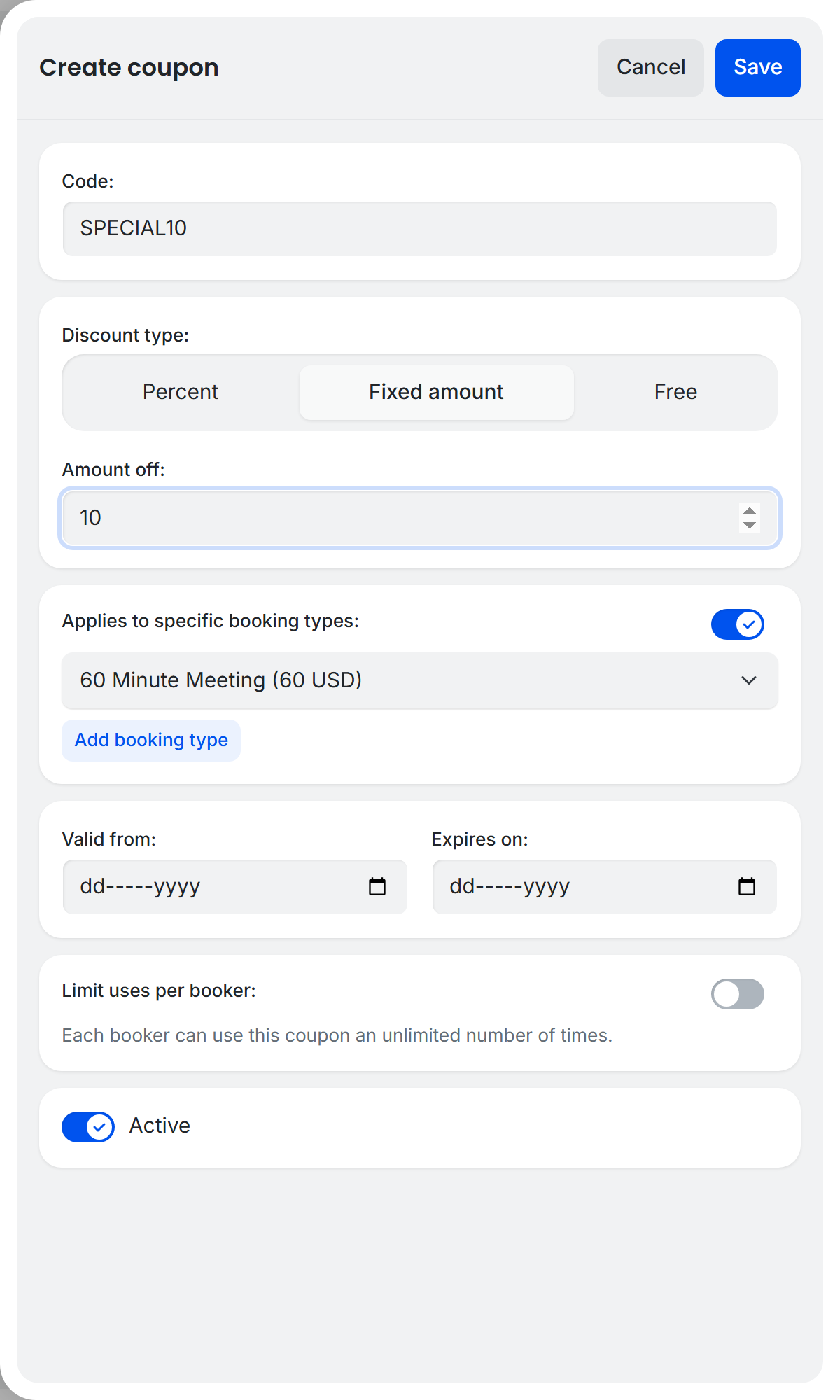
- Set Valid from and Expires on dates (both optional).
- Toggle Limit uses per booker ON and set Max uses per booker (minimum 1) to cap how many times each booker can redeem the coupon.
- The Active toggle controls whether the coupon is currently usable (default: on).
- Click Save.
- The new coupon appears in your coupons table.
Managing Coupons

Your coupons are displayed in a table with the following columns:
- Code — the coupon code
- Discount — the discount type and value
- Applies to — the booking types the coupon is limited to, or All booking types
- Uses — how many times the coupon has been redeemed
- Expires — the expiration date (if set)
- Active — toggle to activate or deactivate the coupon
Click any row to edit the coupon. Use the toggle in the Active column to activate or deactivate a coupon without opening the edit drawer. Click the pencil icon to open the edit drawer, or the trash icon to delete — a confirmation prompt (“Delete?” with Yes/No buttons) appears before removal.
If you have no coupons yet, the page shows No coupons yet with a Create your first coupon button.
Enabling Coupons on a Booking Type
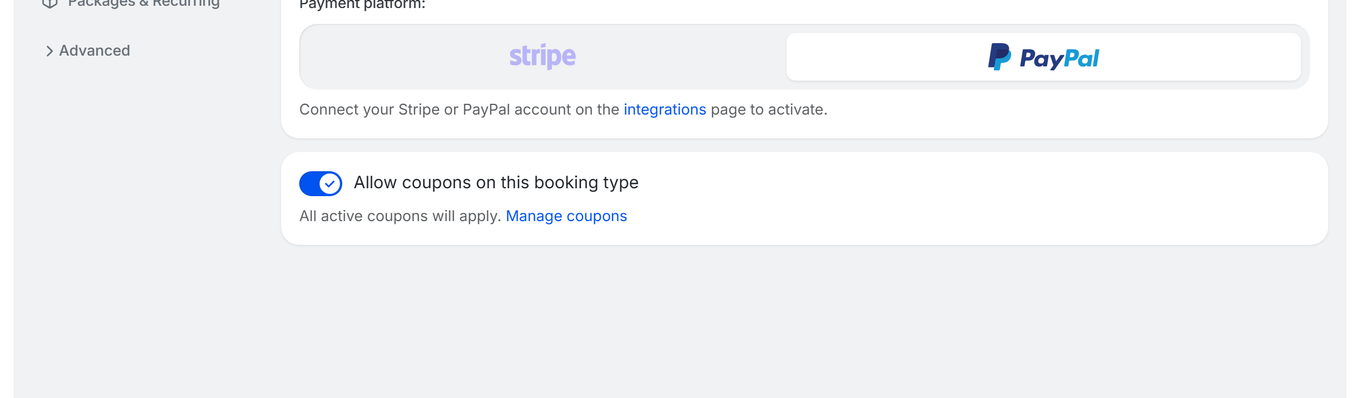
- Open any paid booking type and go to the Pricing & Subscriptions tab.
- Turn on Allow coupons on this booking type.
- While the toggle is on, the help text reads All active coupons will apply. alongside a Manage coupons link (opens
/dashboard/couponsin a new tab).
You do not pick individual coupons here. Every active coupon applies to the booking types it is scoped to, and that scoping is set on the coupon itself on the Coupons page — see Creating a Coupon. This toggle only controls whether coupons may be used on this booking type at all.
Note: The per-booking-type coupon toggle is enforced at the server level. When coupons are disabled on a booking type, coupon codes cannot be applied to it.
How Bookers Apply Coupons

On the booking confirmation modal for paid booking types, bookers see a Coupon code input field with an Apply button. The field only appears when Allow coupons on this booking type is on and at least one active coupon applies to that booking type. (Coupons do not appear during rescheduling.) It is also hidden for bookers who are booking with a subscription, and applying a coupon removes any subscription offer from the checkout.
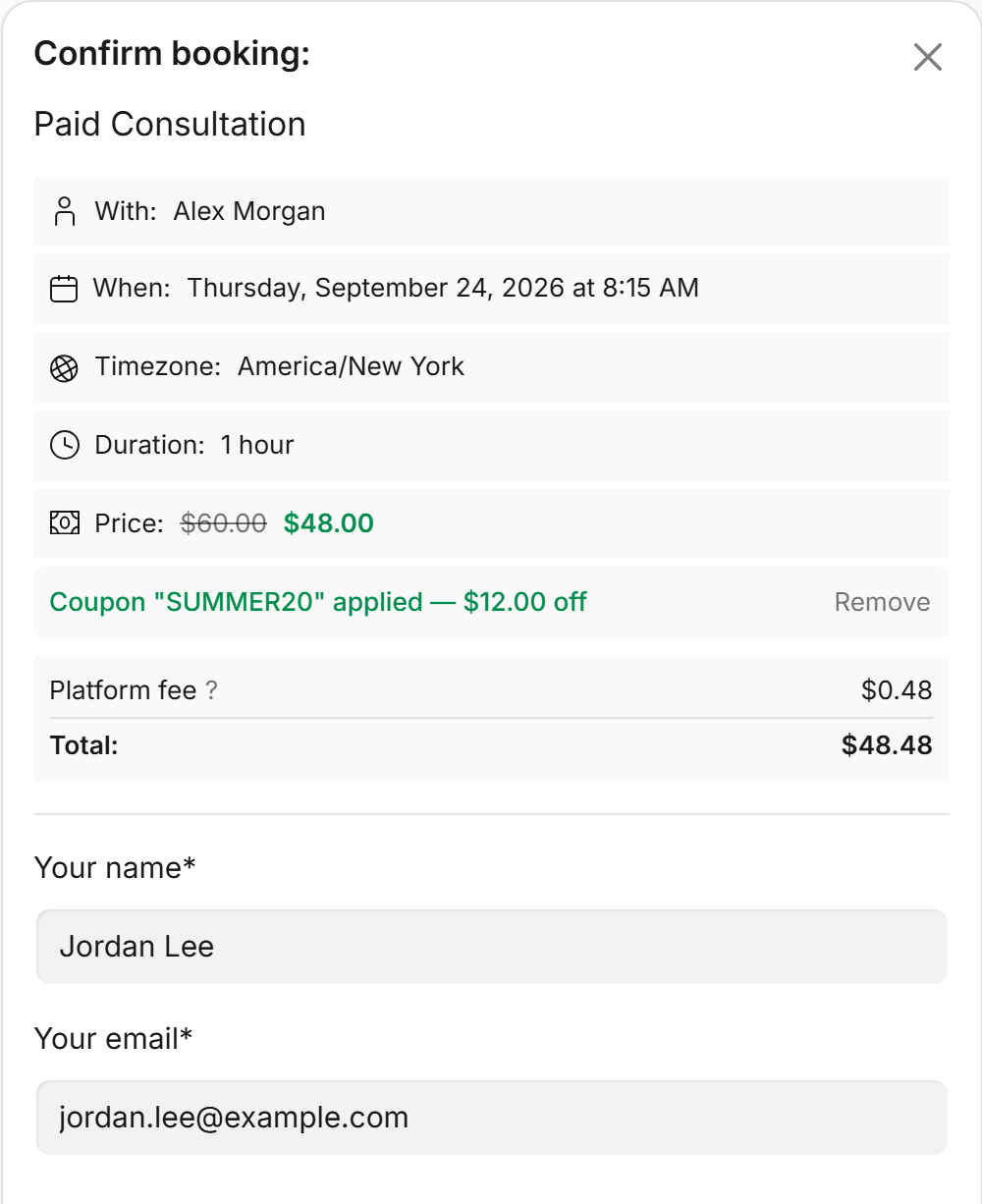
Platform fee: where TidyCal's platform fee applies, it is calculated on the discounted price the booker pays. See Does TidyCal charge a fee on payments?
- Codes are auto-uppercased on input.
- On success, a green message appears, for example Coupon "SUMMER20" applied — $12.00 off, with a Remove link to unapply the coupon.
-
The original price is shown with strikethrough text, and the new discounted price appears in green.
- If the coupon makes the booking free, the price displays “Free” in green and the payment form is hidden, unless the booker also picked a paid add-on product. The booker confirms with the Book event button (Request booking if the booking type needs your approval, or Checkout on a paid recurring booking type).
- Pressing Enter in the coupon code field submits the code.
Troubleshooting
Coupon code not working for bookers
If a booker receives an error when entering a coupon code, check these common causes:
- “Invalid coupon code.” — No coupon with this code exists in the booking type owner's account. Check the spelling, that the coupon was not deleted, and, for team booking types, that the coupon was created by the member who owns the booking type.
- “This coupon is not active.” — The coupon’s Active toggle is turned off.
- “This coupon does not apply to this booking type.” — The coupon is scoped to other booking types only, or Allow coupons on this booking type is turned off for this booking type.
- “This coupon is not yet active.” — The Valid from date has not started yet. Coupons start at midnight UTC on that date.
- “This coupon has expired.” — The Expires on date has been reached. A coupon stops working at the start of its Expires on date (midnight UTC), so choose the day after the last day it should work.
- “You have already used this coupon the maximum number of times.” — The booker's email address has reached the Max uses per booker limit. This message appears when the booking is submitted, not when the code is applied.
- “Apply your coupon to continue” — The booker typed a code but did not click Apply. Payment stays blocked until they click Apply or clear the field.
Coupon not visible in booking type editor
- The booking type editor does not list individual coupons. Its Pricing & Subscriptions tab shows only the Allow coupons on this booking type toggle, which appears when Per booking is selected. Create, edit, and scope coupons on the Coupons page.
- Only coupons created by the booking type’s owner can be used on it (this includes team booking types).
Coupon code format
- Only letters, numbers, dashes (
-), and underscores (_) are allowed. - Codes must be unique per account.
- Maximum length: 50 characters.
- If both dates are set, Expires on must be after Valid from; otherwise saving shows The expiry date must be after the start date.
Frequently Asked Questions
Can I limit how many times a coupon is used?
Yes. Enable Limit uses per booker and set a number. This limits usage per individual booker (identified by email address), not total uses across all bookers.
Do coupons work with team booking types?
Yes, but only coupons created by the team member who owns the booking type (the member who created it) can be applied to it. A coupon created by another team member returns “Invalid coupon code.”, even if it is scoped to that booking type. The booking type scope selector shows team types with a “[Team Name]” prefix.
What happens when a 100% off coupon is applied?
The booking becomes free. The Stripe or PayPal payment form is hidden and the booker confirms with the Book event button. If they also select a paid add-on product, they still pay for the add-on.
Do coupons work with recurring bookings?
Yes. A coupon discounts every session. In a recurring series, each session is charged the discounted price, and a 100% off coupon makes the whole series free. For a package paid upfront, the discount is applied to each session in the package before the total is charged.