
Subscriptions - Recurring Payments with Booking Credits
Sell subscriptions in TidyCal: subscribers pay a recurring price through Stripe and get booking credits each week, month or year to book sessions with you.
Overview
TidyCal subscriptions let you create recurring billing plans for your booking types. Instead of paying per booking, your clients subscribe and receive a set number of booking credits each billing period (week, month, or year). At the start of each period subscribers get a fresh set of credits; unused credits do not roll over.
Subscriptions are available on all plans (Free Plan, Individual Lifetime, Agency Lifetime and Pro) and require a connected Stripe account for payment processing.
Prerequisites
- TidyCal account on any plan
- Stripe account connected to TidyCal (go to Integrations → Payments)
- At least one booking type to attach the subscription to
Note: Subscriptions require Stripe. PayPal is not supported for subscription billing.
Platform fee on subscriptions. On the Free Plan, Individual Lifetime and Agency Lifetime, TidyCal adds a 1% platform fee to each subscription charge, shown to the subscriber as a separate Platform fee line; on a lifetime plan you can choose to cover it yourself. Pro has no platform fee. Changes apply to new subscribers; existing subscriptions keep the price they started with. See Does TidyCal charge a fee on payments?
Creating a Subscription Booking Type
There are three ways to create a subscription booking type:
Option 1: Use the Subscription Preset
- Go to Booking types.
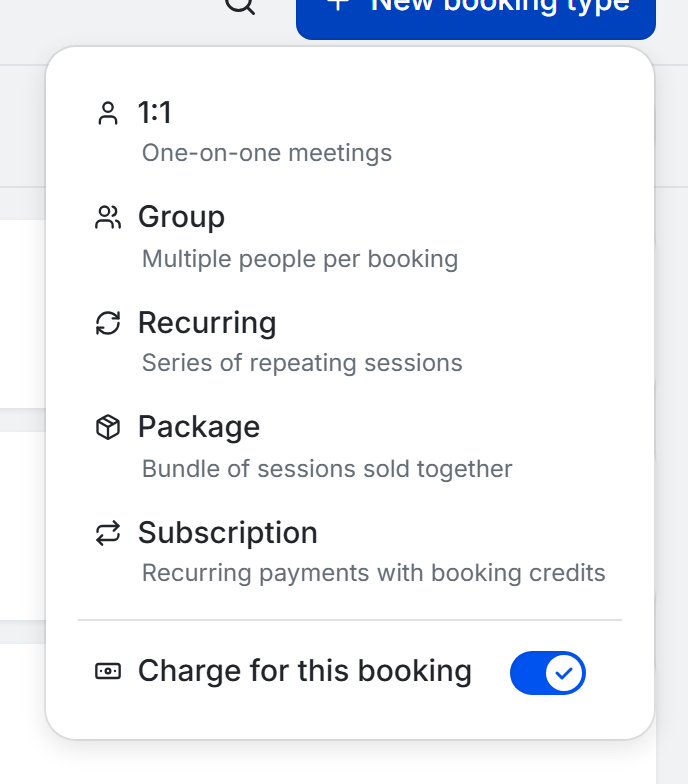
- Click New booking type.
- Select Subscription from the dropdown (described as "Recurring payments with booking credits").
- Configure the booking type details and subscription settings.
- Click Save.
Option 2: Convert an Existing Booking Type
- Go to Booking types and click on an existing booking type to open the editor.
- Click Pricing & Subscriptions in the editor sidebar.
- Select Subscription from the three-option selector (Free / Per booking / Subscription).
- Configure the subscription settings (see below).
- Click Save.
Choosing Subscription sets Stripe as the payment platform and hides the Packages & Recurring tab for that booking type.
Option 3: Start from the Subscriptions Page
- Go to Subscriptions in the sidebar (under Revenue).
- Click New subscription.
- Under Quick start, choose a ready-made preset -- each one sets a number of sessions per billing period along with a suggested price -- or choose Custom subscription to set your own credits and price.
- The booking type editor opens with those values already filled in. Change anything you like: a preset only sets the starting values.
- Click Save.
Configuring Subscription Settings
When you select the Subscription pricing model, you will see these settings:
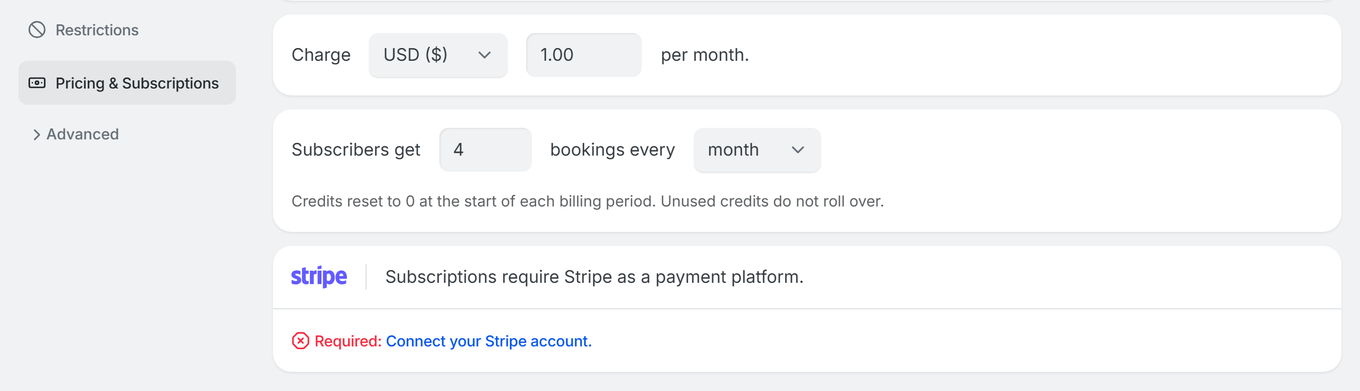
- Charge -- choose the currency and the price billed each period (e.g., USD 25.00 per month).
- Subscribers get … bookings every … -- set the number of bookings (1–100, default 4) and the period: week, month or year. The period is also how often subscribers are billed.
Important: At the start of each billing period subscribers get a fresh set of credits. Unused credits do not roll over. (The editor describes this as credits resetting to 0.)
How Subscribers Book
When a booking type has an active subscription plan:
- Visitors see a subscription sales page instead of the regular booking calendar.
- They enter their name and email, click Continue to payment, and pay in the secure Stripe payment form on your booking page.
- After subscribing, they land on their subscription page, where Schedule a booking takes them to your calendar to book with a credit.
- Each booking uses one credit. If the booking type requires your approval, the credit is held until you approve or decline the request. If a booking is cancelled in the same billing period, the credit is returned.
Subscribers with available credits see a "Schedule a booking" option instead of a payment form.
Managing Subscriptions
As a Host
You can see a contact's active subscriptions from the Contacts page:
- Go to Contacts in the sidebar.
- Find the contact (subscribers show a Subscriber badge), open the row's menu and choose View subscriptions.
- See each subscription's status, credits remaining and used, the renewal date, and Copy manage link to send them their subscription page.
Only active subscriptions appear here; use the Subscriptions page for past-due or cancelled ones.
The Subscriptions Page
For a dedicated view of every subscriber, go to Subscriptions in the sidebar (under Revenue). It shows:
- Active subscribers, Monthly recurring revenue, Total revenue, and Cancelled totals across the top.
- A searchable list of subscriptions you can filter by All statuses, Active, Past due, or Cancelled.
- To inspect one subscription, open the More options menu (the vertical dots at the right of the row) and choose View details. The Subscription details panel shows the plan, the subscriber, credits remaining, and the date they subscribed.
- To end a subscription yourself, choose Cancel from the More options menu (or Cancel subscription in the details panel) and confirm. The subscriber keeps access until the end of the current billing period; until then the subscription shows as Cancelling.
If you have no subscribers yet, the page shows an Offer a subscription screen with Quick start presets -- ready-made setups, each with a number of sessions per billing period and a suggested price -- plus a Custom subscription option. Selecting any of them opens the booking type editor with those values already filled in and fully editable.
Subscriber Self-Service
Subscribers get a link to their subscription page in the confirmation email (Manage subscription). There they can:
- See Credits this period and the Next billing date
- Schedule a booking, and reschedule or cancel upcoming bookings
- View their upcoming and past bookings made with subscription credits
- Cancel their subscription -- cancellation takes effect at the end of the current billing period (they keep their credits until then)
Limitations
- Stripe only -- Subscriptions require Stripe as the payment platform. PayPal is not supported for recurring billing.
- No credit rollover -- Unused credits do not carry over; each billing period starts with a fresh set.
- End-of-period cancellation -- When subscribers cancel, they retain access until the current billing period ends.
- One subscription plan per booking type -- Each booking type can have one active subscription plan.
Payment Methods for Subscribers
Subscribers can pay by card or Link. For subscriptions priced in US dollars, they can also pay by ACH bank debit when ACH Direct Debit is active on your Stripe account. Bank verification can take 1–2 business days; the subscription starts once the bank account is verified. Other payment methods enabled in Stripe are not offered for subscriptions. See Enable Additional Stripe Payment Methods.
When a Subscription Needs Bank Confirmation
Some cards require the bank to confirm the first payment (for example 3D Secure / Strong Customer Authentication in Europe). When that happens the subscription is not active yet — it starts only once the payment is actually taken.
Depending on where they subscribed, the subscriber sees this message on the booking page:
"Your bank needs to confirm this payment before the subscription starts. Check your email for a link to finish it."
or a Past Due status on their subscription page. They also receive an email titled "Confirm your payment to finish subscribing" with a Complete payment button. Until they use it:
- The subscription is not active, so its credits cannot be used yet. On your Subscriptions page it shows as Past due.
- No subscription confirmation email is sent — that only goes out once payment succeeds.
If a subscriber tells you they paid but cannot book, ask them to check their inbox for that email and finish the confirmation. You can also check the subscription's status on the Subscriptions page in the sidebar under Revenue.
Troubleshooting
Subscription option shows "Connect your Stripe account"
- Go to Integrations → Payments and connect your Stripe account first.
- After connecting Stripe, return to the booking type editor and select Subscription.
Subscriber says they have no credits
- Each billing period starts with a fresh set of credits. If the subscriber used all their credits, they must wait for the next period.
- Check the subscription on the Subscriptions page: filter by Past due or Cancelled if it is not in the active list.
- If a renewal payment failed, the subscription shows Past due and the subscriber cannot book with credits until the payment goes through.
Subscription payment failed
- Stripe retries a failed renewal on its own schedule (see What Happens When a Booking Payment Fails).
- TidyCal does not email the subscriber about a failed renewal, so contact the subscriber directly.
- If their card has expired, the subscriber can reach out to TidyCal support, or reconnect the payment with their new card.
- Check your Stripe Dashboard for details on failed payments.
Frequently Asked Questions
Which plans support subscriptions?
Subscriptions are available on all plans -- Free Plan, Individual Lifetime, Agency Lifetime and Pro. You need a connected Stripe account to process subscription payments; PayPal is not supported.
Do unused credits roll over?
No. Each billing period starts with a fresh set of credits, and unused credits are lost. Encourage subscribers to use their credits before the period ends.
What happens when a subscriber cancels?
Cancellation takes effect at the end of the current billing period. The subscriber keeps their remaining credits and can still book until the period ends. No further charges are made.
What is the difference between "Per booking" and "Subscription" pricing?
Per booking charges the customer once for each individual booking. Subscription charges the customer on a recurring basis (weekly, monthly, or yearly) and gives them a set number of booking credits to use during each billing period.
Related Articles
- Connect your Payment Services
- Does TidyCal charge a fee on payments?
- Enable Additional Stripe Payment Methods (ACH, Debit, Apple Pay, and More)
Need more help? Contact us at support@tidycal.com.