
Recurring Bookings
Set up recurring bookings in TidyCal so clients can book repeating sessions on specific days of the week. Available on all plans including the Free Plan.
Overview
Recurring bookings let you offer repeating sessions that automatically generate multiple bookings on a set schedule. For example, a weekly coaching session every Monday for 8 weeks. Clients select which day(s) of the week they want to book and a time for each day, then all sessions are created at once.
TidyCal offers two modes under the Packages & Recurring tab in the booking type editor:
- Recurring — Repeating sessions on selected days (e.g., every Monday and Wednesday for 8 sessions).
- Package — The client picks exactly (or up to) a set number of dates and times within your availability. Paid packages are charged upfront for all bookings.
This article covers the Recurring mode.
| Feature | Free Plan | Individual Plan ($29) | Agency Plan ($79) | Pro ($12/month or $99/year) |
|---|---|---|---|---|
| Recurring bookings | Yes | Yes | Yes | Yes |
| Package bookings | Yes | Yes | Yes | Yes |
Prerequisites
- A TidyCal account (any plan)
- At least one booking type created
- A connected Stripe account if the booking type is paid, because paid recurring bookings are charged per session through Stripe (go to Integrations → Payments)
Setting Up Recurring Bookings
Recurring bookings are configured in the booking type editor by the host. Clients then select their preferred days and times on the booking page.

How to Enable Recurring Bookings
To start from scratch, go to Booking types, click New booking type and choose Recurring. The new booking type is already set to repeat once a week for 8 bookings. To make an existing booking type recurring:
- Go to Booking types in the sidebar.
- Edit the booking type you want to make recurring.
- Open the Packages & Recurring tab. (This tab does not appear on booking types priced as a Subscription.)
- Turn on Allow clients to book multiple bookings at once.
- Select Recurring (the other option is Package).
Configure Recurring Settings
After enabling recurring bookings, configure the schedule:
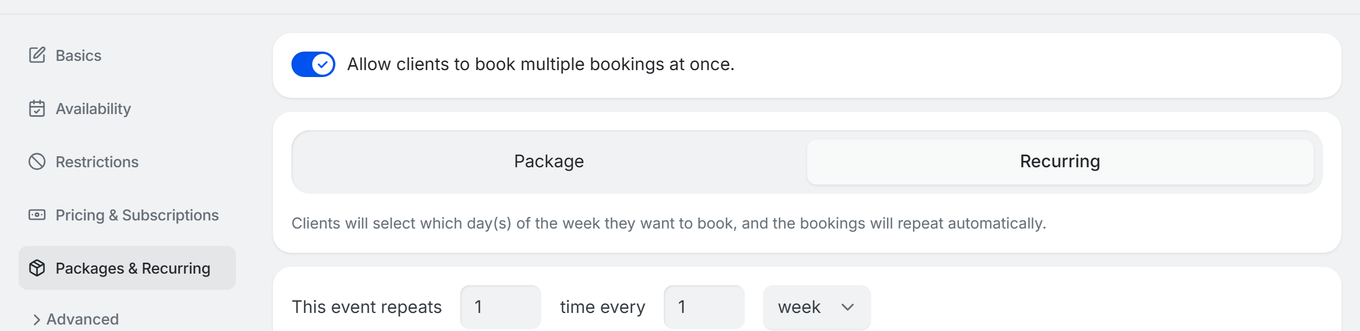
- This event repeats — Set how many times per period the event occurs and the period: week, month or year (e.g., 2 times every 1 week). For a monthly series, On the … occurrence each month. lets you pick the 1st, 2nd, 3rd, 4th or last week of the month, or any week.
- End series after — Set the total number of bookings in the series (default: 8 bookings).
- Save the booking type.
Clients will select which day(s) of the week they want to book, and the bookings will repeat automatically.
Payment for Recurring Bookings
There is no payment timing setting for recurring bookings. When the booking type has a price, the Packages & Recurring tab shows: Payment is collected before each session via Stripe.
- When booking, the client saves a card through Stripe. The series is not charged in one upfront payment.
- Each session is charged separately to that saved card, within the hour before it starts. This is a one-off charge per session, not a Stripe subscription.
- If a session's charge fails (for example, the card is declined or needs authentication), that session is cancelled and the client is emailed. The other sessions in the series are not affected.
- If the booking type allows coupons, a coupon discounts each session charge; a 100% coupon makes the whole series free.
- Paid recurring bookings require Stripe as the payment platform. PayPal cannot be used.
If you want clients to pay for several sessions in one payment, use Package mode instead. For paid packages the tab shows: Payment is collected upfront for all bookings.
If Stripe is selected as the payment platform but your Stripe account is not connected, the Pricing & Subscriptions tab shows: Required: Connect your Stripe account.
Platform fee. TidyCal's 1% platform fee applies to each session charge on Stripe (none on Pro). See Does TidyCal charge a fee on payments?
Booking a Recurring Appointment
When a client visits a recurring booking type, they see a dedicated booking page instead of the standard calendar view.
Client Booking Workflow
- The client sees the recurring booking page with day-of-week selectors (Monday through Sunday).
- The page shows one day row per session in each period. For example, if the host configured "2 times per week," the client picks two days (Book every … and every …). A day already picked in one row is not offered in the others.
- For each selected day, a time dropdown appears. The client selects a time from the available slots.
- Optionally, the client clicks View 8 dates (the number matches the series) to see every session's date and time.
- The client clicks Confirm recurring booking (free) or Continue to payment (paid) and enters their name, email and any intake questions.
- For a paid series, the client saves a card through Stripe. All sessions are then created at once.
What the Client Sees
On the booking page, clients see labels including:
- Book every / and every — Day selection prompts
- Select a day... — Day dropdown placeholder
- Select time — Time dropdown placeholder
- View 8 dates — Opens the list of every session (the number matches the series)
- Recurring schedule — Preview section heading
- Confirm recurring booking — Final confirmation button (for free bookings)
- Continue to payment — Payment button (for paid bookings)
For paid bookings, the client also sees Price per booking and Total amounts (at the payment step, a Platform fee line is added when the fee applies), with the note: Your card will be charged before each booking.
Session times are shown in the timezone selected on the booking page. If the series crosses a daylight saving change, the client can click View 8 dates to check each session's time before confirming.
Long descriptions — Show more / Show less
If the booking type's description is longer than four lines, TidyCal automatically collapses it on the public booking page to keep the page tidy. The client sees:
- The first four lines of the description.
- A fade gradient at the bottom indicating there's more content.
- A Show more button below the description.
Clicking Show more expands the full description with a smooth animation; the button toggles to Show less. If the description is four lines or shorter, no toggle appears — the full text is shown by default.
This applies to both the Classic booking page and the recurring booking page on screens narrower than 992px (phones and small tablets). On wider screens the full description is always shown. No host setting is required; the behavior is automatic.
Managing Recurring Bookings
Cancelling an Individual Session
You can cancel a single session within a recurring series without affecting the other sessions. Each session in the series can be cancelled or rescheduled independently, just like a standard booking.
Cancelling an Entire Series
To cancel all future sessions in a recurring series at once, use Cancel entire series. This cancels all upcoming sessions in the series.
Bookers can cancel a whole series at once; hosts cancel sessions one at a time from Bookings, as there is no series-wide cancel in the host view. Bookers find a Cancel entire series link in their booking emails (such as the confirmation and reminders), which opens the booking confirmation page. The link and button only appear when the booking type allows client cancellation, and the button only shows while more than one session is still upcoming. If the booking type has a cancellation fee, a booker who cancels the series is charged it once.
Rescheduling
Individual sessions within a recurring series can be rescheduled using the standard reschedule flow. However, you cannot reschedule an entire series at once — each session must be rescheduled individually, or the client can cancel the series and rebook.
Calendar Sync
Each session in a recurring series is synced to your connected calendar (Google Calendar, Microsoft Outlook, or Apple Calendar) as a separate calendar event. TidyCal does not create a single recurring calendar event — each session appears as its own event so that individual cancellations and reschedules are handled cleanly.
Troubleshooting
Recurring Toggle Not Saving
- Make sure you click Save after toggling recurring bookings on or off.
- If the toggle reverts after saving, refresh the page, turn it on again and click Save. Save is greyed out until you change something.
Client Sees "This recurring series can’t be booked right now"
- Every session in a series has to share the same free time slot, so a weekday is offered only when one time is free on all sessions. A single fully blocked date can remove a weekday.
- When no weekday qualifies, the booking page shows This recurring series can’t be booked right now. If you open the page signed in as the host, you also see Only you can see this with the dates that have no availability.
- Lower End series after so the series finishes before those dates, or free up the time on your calendar.
No Available Times for Selected Day
- A weekday appears only if at least one time is free on every session in the series; times that clash on any future date are not offered.
- The booking type's booking limits also count every session in the series.
- Check the booking type's availability schedule to ensure the selected days have open time slots.
- TidyCal accounts for padding time between bookings when calculating available times.
Per-Session Payment Not Working
- Per-session payments require Stripe as the payment method. PayPal does not support per-session billing.
- Make sure Stripe is selected in the Pricing & Subscriptions tab of the booking type editor.
- Verify your Stripe account is connected at Integrations → Payments.
If you need help, contact support@tidycal.com.
Frequently Asked Questions
Can Free Plan users create recurring bookings?
Yes. Recurring bookings are available on all TidyCal plans, including the Free Plan.
Can I reschedule an entire recurring series?
No. Individual sessions can be rescheduled one at a time, but there is no option to reschedule the entire series at once. To change the schedule for all remaining sessions, the client can cancel the series and rebook.
What is the difference between Recurring and Package?
Recurring creates a repeating series on specific days of the week (e.g., every Monday at 10 AM for 8 weeks), and a paid series is charged per session. Package lets the client pick a set number of dates and times of their choosing within your availability, and a paid package is charged upfront for all bookings.
Do intake form questions work with recurring bookings?
Yes. If your booking type has intake form questions (custom questions the client fills out when booking), the answers are saved for the parent booking and all child sessions in the series. Clients fill out the form once during the initial booking, and the responses are attached to every session.