
How to Add CC Email Addresses to Booking Notifications
Add CC email addresses to any booking type so that additional recipients automatically receive copies of booking notification emails, keeping your team or assistant informed about new bookings.
Overview
The CC Email feature lets you send copies of booking notification emails to one or more additional email addresses. This is useful for keeping assistants, managers, or team members informed when bookings are created, cancelled, or rescheduled, without requiring them to have TidyCal accounts.
| Plan | CC Email Access |
|---|---|
| Free Plan | Not available |
| Individual Plan ($29) | Available on all booking types |
| Agency Plan ($79) | Available on all booking types |
| Pro ($12/month or $99/year) | Available on all booking types |
Prerequisites:
- An Individual Plan, Pro, or Agency Plan
- At least one booking type created
How to Add CC Email Addresses
- Go to Booking types and click the booking type you want to edit.
- In the editor drawer sidebar, expand Advanced, then click Notifications.
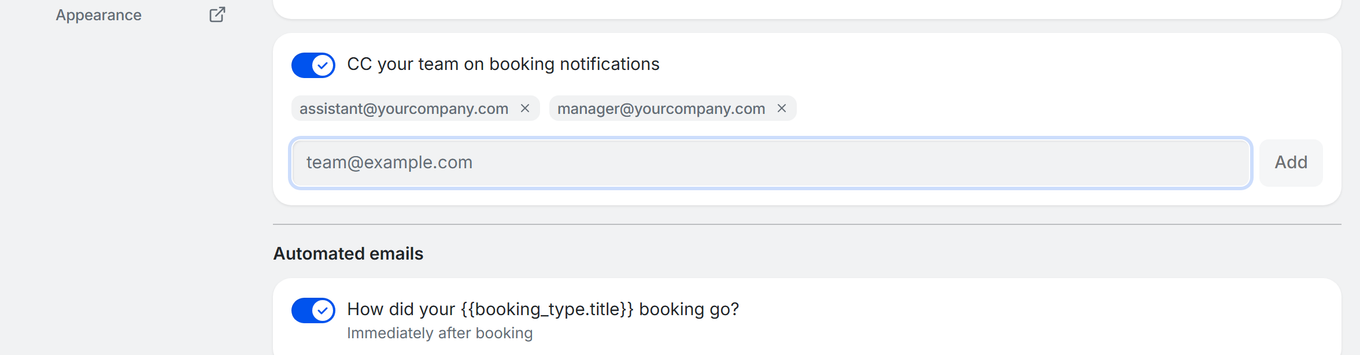
- Turn on CC your team on booking notifications.
- In the email field (placeholder:
team@example.com), enter the email address you want to CC. - Click the Add button to add the address to the CC list.
- Repeat steps 4-5 to add more CC recipients.
- Click Save at the top of the editor.
Removing a CC Address
To remove a CC recipient, click the X next to their email address in the CC list, then click Save.
Which Emails Include CC Recipients
CC recipients receive copies of owner-side notification emails:
- Confirmation emails - When a new booking is created
- Cancellation emails - When a booking is cancelled
- Reschedule emails - When a booking is rescheduled
- Approval emails - For manual approval booking types
- Payment released emails - When an unpaid booking is released because its payment was not completed
Note: CC recipients receive the same notification the booking owner gets. Attendee-facing emails are not affected.
Validation Rules
- Each address must be a valid email format
- Adding an address that is already in the list does nothing. If two addresses differ only by capitalization, saving shows: "Duplicate email addresses are not allowed in CC recipients."
- CC addresses are stored as a list and can be added or removed individually
Plan Requirements
CC Email requires the Individual Plan ($29), Pro ($12/month or $99/year), or Agency Plan ($79). Free Plan users do not have access to this feature.
To upgrade, go to Settings → Your plan.
Common Use Cases
Keep an Assistant Informed
Add your assistant's email as a CC recipient so they know about every new booking and can prepare materials or follow up as needed.
Team Awareness
CC a team email address (e.g., team@yourcompany.com ) to keep the whole team aware of incoming bookings, cancellations, and reschedules.
Manager Oversight
Add a manager's email to monitor booking activity without needing to check TidyCal directly.
Troubleshooting
CC Toggle Is Greyed Out
- On the Free Plan the toggle is disabled and shows a Pro badge with an Unlock CC email addresses by upgrading link.
- Solution: Upgrade to the Individual Plan ($29), Pro ($12/month or $99/year), or Agency Plan ($79).
Getting "Duplicate Email" Error
- The list contains the same address twice with different capitalization (e.g.
Team@example.comandteam@example.com). - Solution: Remove one of them with the X, then click Save.
CC Recipients Not Receiving Emails
- Make sure you clicked Save after adding the CC address.
- Ask recipients to check their spam/junk folder.
- CC only applies to new notifications sent after saving. Previously sent emails are not affected.
- If the issue persists, contact support@tidycal.com.
Frequently Asked Questions
How many CC recipients can I add?
There is no hard limit on the number of CC recipients. You can add as many email addresses as needed.
Is the CC list per booking type?
Yes. Each booking type has its own CC list, so you can CC different people for different types of bookings.
Can attendees see the CC recipients?
No. CC is added only to the notifications TidyCal sends you, the host. Attendees never receive those emails, so they don't see the CC addresses. You and all CC recipients can see each other's addresses.
What is the difference between CC and Reply-To?
CC sends a copy of the notification to additional recipients. Reply-To changes where responses go when someone replies to the email. You can use both features together. See How to Set Custom Reply-To Email Addresses for Booking Notifications.